
You can preview individual lessons, assessments, and scanning tasks while building an assignment. This helps you check what learners will be asked to complete before you publish.
Preview items during ‘Select Content’ step
-
In Assignments → Manage Assignments, select Create New Assignment and choose a module or DMS protocol.
-
On the Select Content step, find the item under Lessons & Assessments or SonoSimulator Scanning Tasks.
-
Click the item’s preview link to inspect it. You can do this before selecting the item, then return to Select Content to choose the work you want to assign.
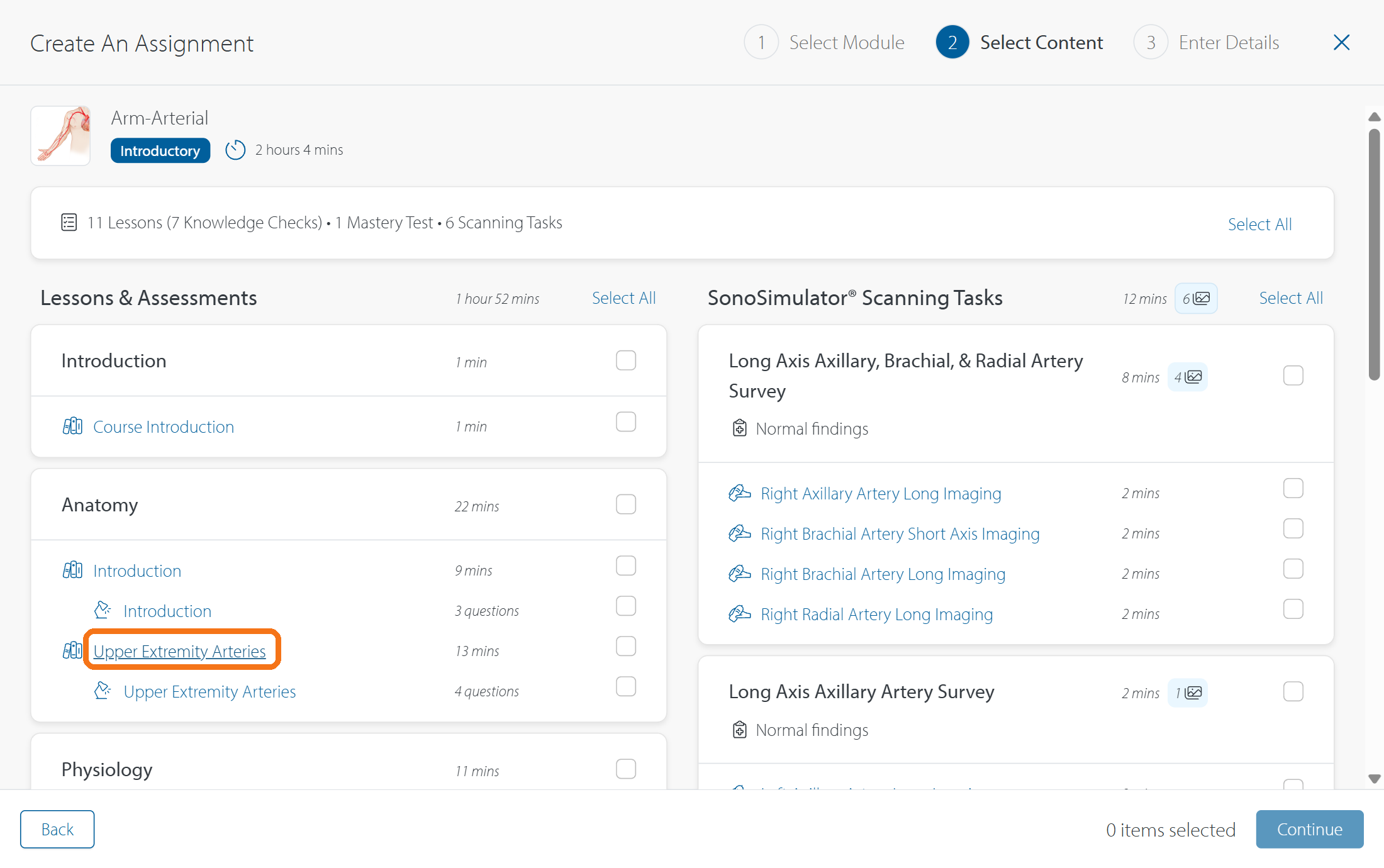
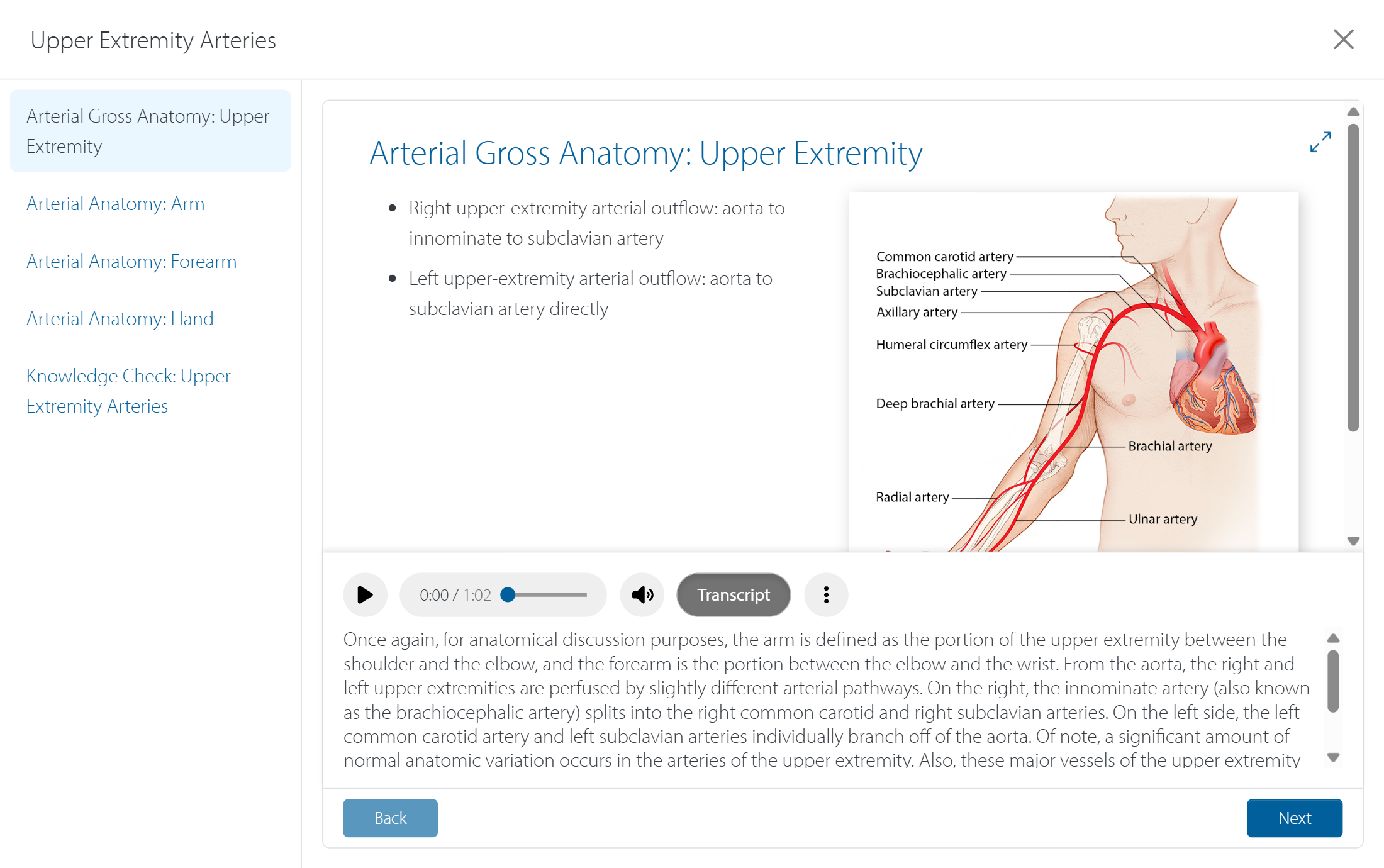
Lessons and assessments
-
Lesson Preview shows the pages within a lesson.
-
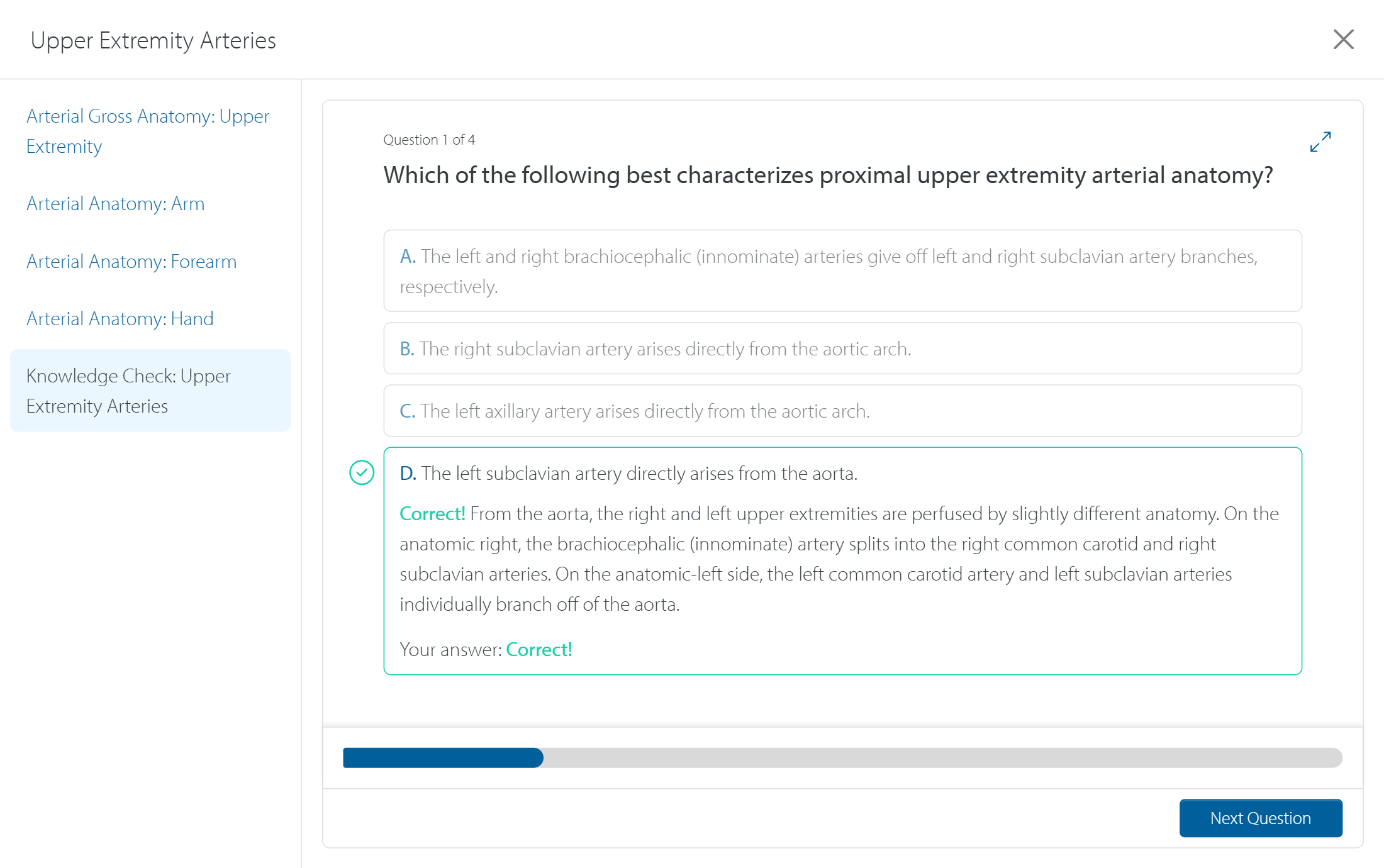
Assessment Preview shows the questions and answers in a knowledge check or mastery test.
Previewing scanning tasks on the web
Click a scanning task link to review: the activity overview, including patient history and Key Finding; the task instructions learners see in the SonoSimulator; the reference image; and the findings video. This helps you check that the case and requested image fit your learning goal.
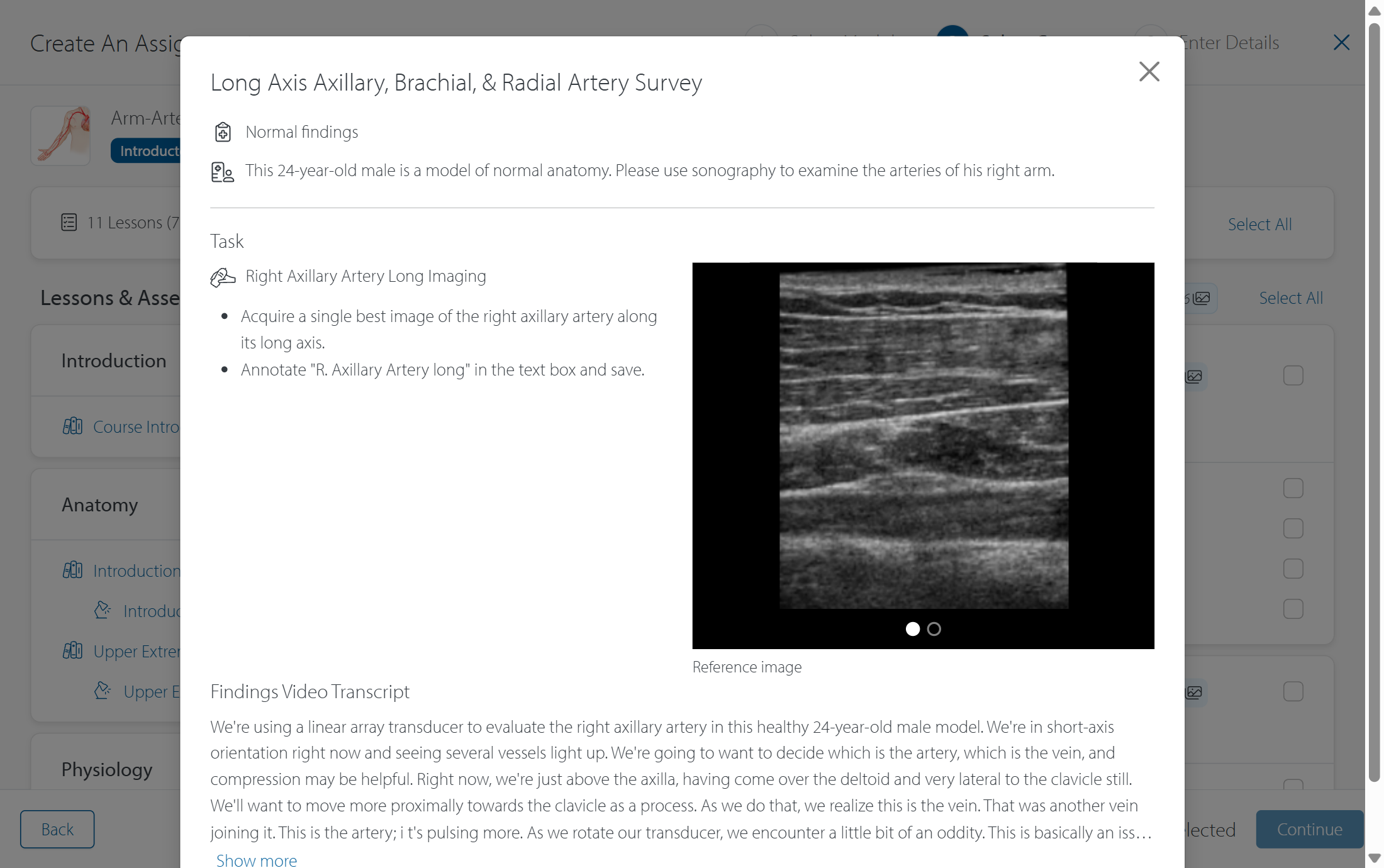
The Key Finding in the admin preview is not shown to learners while they scan. See Do my learners see the Key Finding within assigned scanning tasks? for when learners can see it.
Preview scanning tasks in the SonoSimulator
After saving a draft with scanning tasks, you can scan those tasks within the SonoSimulator. To do so, you’ll basically follow the same steps to open the SonoSimulator as learners, but instead of seeing My Assignments, you’ll see Draft Assignments. To preview an assignment you’ve already published, use Published Assignments instead.
Note: Previewing from Draft Assignments or Published Assignments is for review only. You cannot save assignment images there, and your scanning does not record learner progress.
Check the assignment as a whole
Before publishing a draft, review your selected content in Select Content and confirm the title, instructions, learners, and dates in Enter Details. For the full builder workflow, see How do I create and publish a SonoSim assignment?.
After you publish, open Assignments → Manage Assignments and click the assignment title under Scheduled or Active to open its learner-like Preview. This view lets you inspect the selected work without recording learner progress.
Contact Support
-
Give us a call: 855-873-7666
-
Schedule a virtual Support Session