
Create a copy when you want to reuse an assignment without changing the original. This creates a separate copy in your drafts with the same content selections and instructions. You can use the copy as a template for another class or teaching period.
Create a copy in your group
-
Open Assignments → Manage Assignments and find the assignment you want to reuse. You can copy a Draft, Scheduled, Active, or Archived assignment.
-
Open its ••• menu and select Create a copy.
-
Find the new assignment under Draft. Its title starts with Copy of followed by the original title.
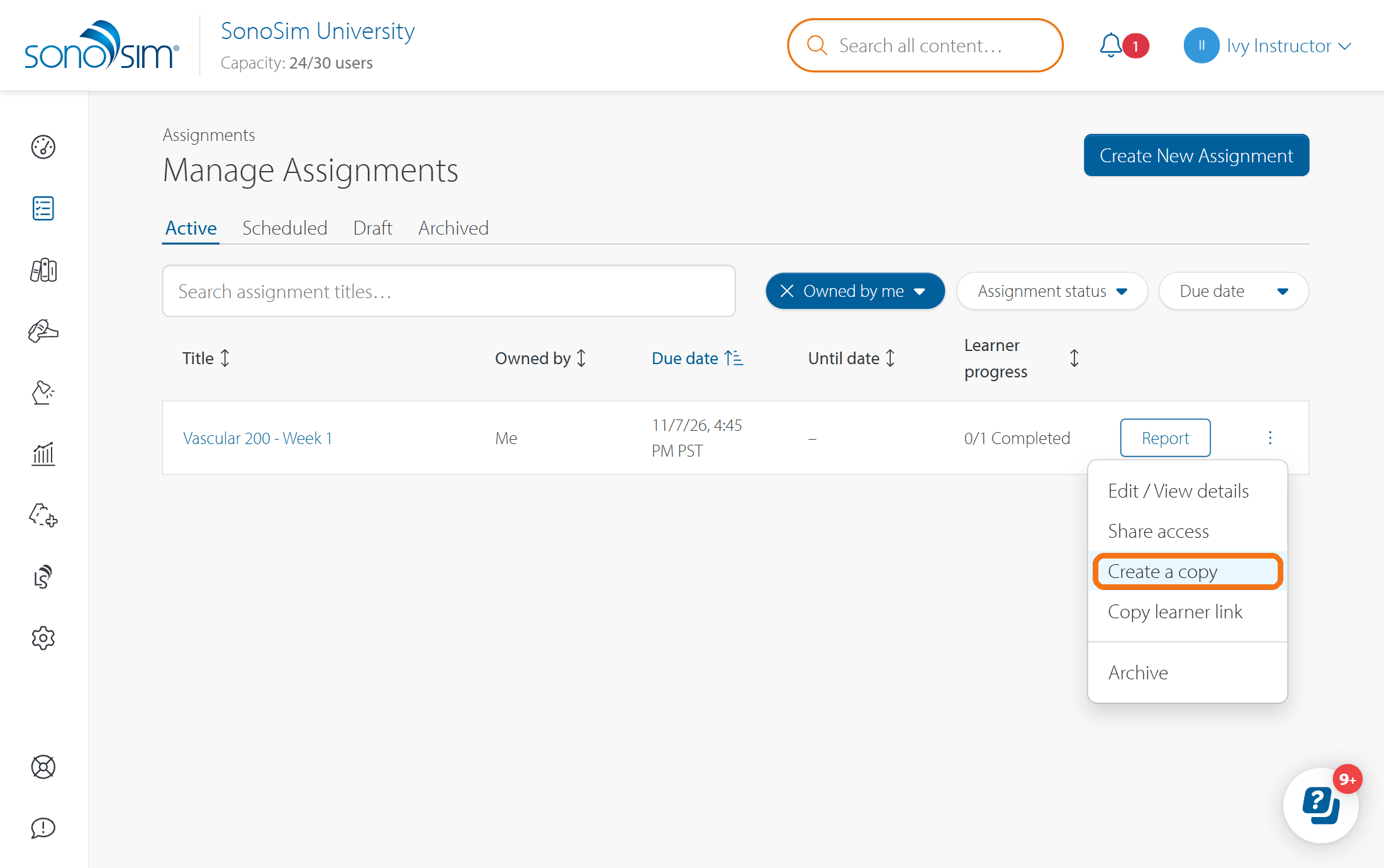
The copy keeps the source template, selected content, and instructions. It starts without assigned learners, dates, collaborators, or learner progress and reports. You become the Owner of the new draft.
If you have access to multiple groups
The menu instead shows Create copy for…. Select it, then choose the group where you want the new draft. Your current group appears first and is marked CURRENT GROUP. To copy into another group, select that group's name, switch to the group, and open Draft to find the copy.
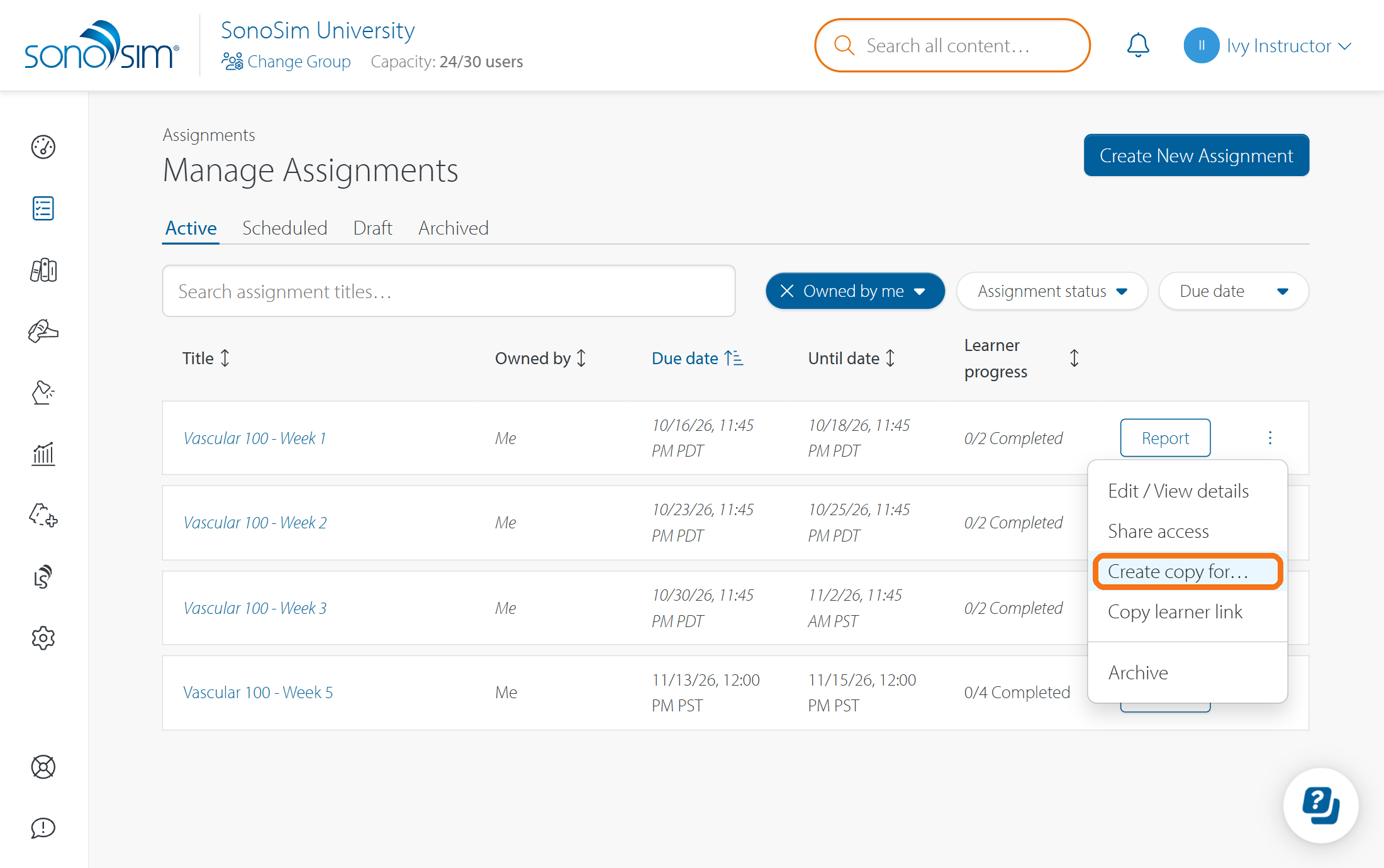
Before copying to another group, check that it has access to the assignment's source template and selected content. Without the source template, the copied draft may not be usable. Content that is not licensed in the destination group will not be available in the copied assignment. Review the draft's content before publishing.
Prepare the new draft
Rename it, check the content and instructions, choose learners, and set new dates before publishing. See How can I edit an assignment? for draft editing and How do I create and publish a SonoSim assignment? for the publishing steps.
Contact Support
-
Give us a call: 855-873-7666
-
Schedule a virtual Support Session