
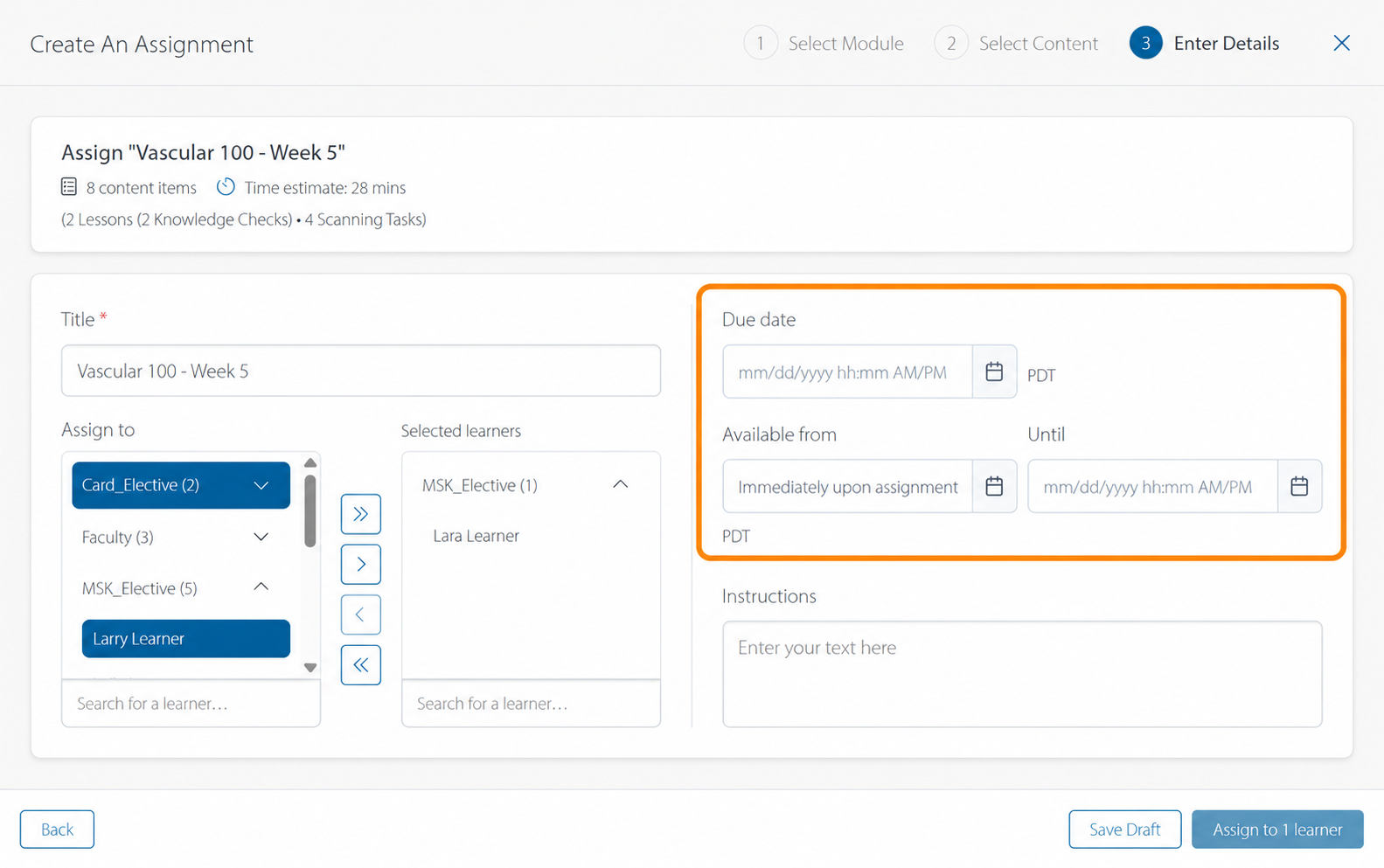
The three date fields in Enter Details control when learners can start an assignment, when their work is due, and when they can no longer continue it.
What each date does
-
Available from controls when a published assignment becomes visible and accessible to learners. If you leave the default 'Immediately upon assignment', learners can access it when you publish. If you set a future date and time, the published assignment will not be visible to learners until that datetime hits.
Assignments that are not yet available to learners will appear under the ‘Scheduled’ tab in your Manage Assignments interface.
-
Due date is the deadline of when work is due and is required when you publish. The due date alone does not stop learners from working.The assignment report clearly marks work completed after this date and time as late, so you can distinguish it from on-time work.
-
Until is an optional cutoff for additional work. At this date and time, learners can no longer open the assigned content or save new progress. They can still view the assignment title and their report.
All dates can be changed after publish.
Allow or prevent late work
Set Until later than Due date to give learners a grace period to finish after the deadline. For example, a June 9, 2027, 5:00 p.m. due date and a June 11, 2027, 5:00 p.m. until date create a two-day late-work window. Work completed during that window is late and is marked as such in the report.
-
Set Until to the same date and time as Due date if you do not want a late-work window.
-
Leave Until empty if you do not want a date-based cutoff. Learners can continue to work after the due date while the assignment remains available to them, and new work is late.
Check the date order
Available from must be before Due date. If you set Until, it must be the same as or later than Due date.
For the full creation steps, see How do I create and publish a SonoSim assignment?
Contact Support
-
Give us a call: 855-873-7666
-
Schedule a virtual Support Session