
Complete assigned scanning tasks in the installed SonoSimulator software. To complete tasks, ensure Test Mode is on, follow the steps in the side panel, and save the requested image. Your assignment progress updates when you save an image; you do not submit the image separately.
The SonoSimulator is an installed software. Learn how to install and use the SonoSimulator.
Find your assignment
-
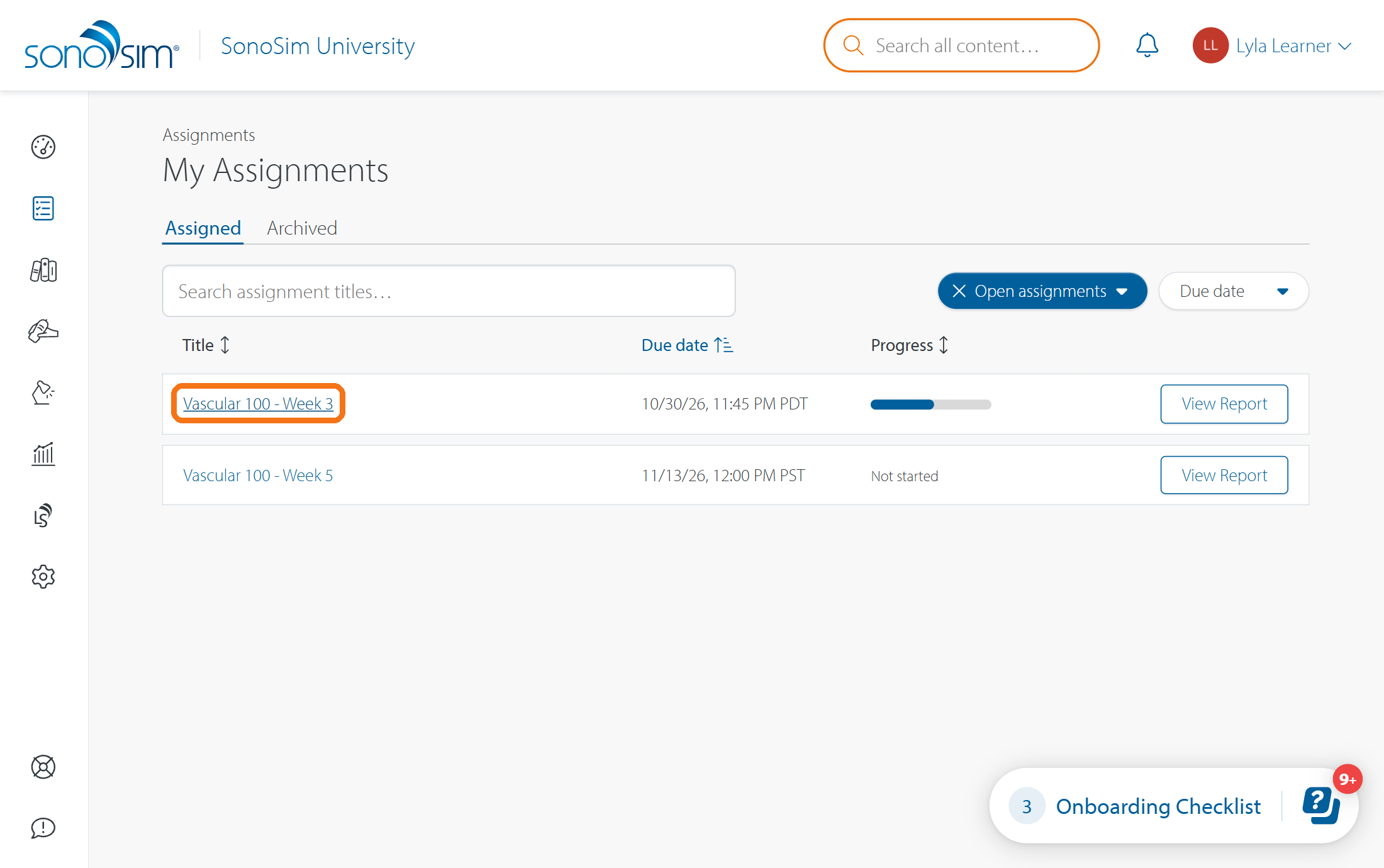
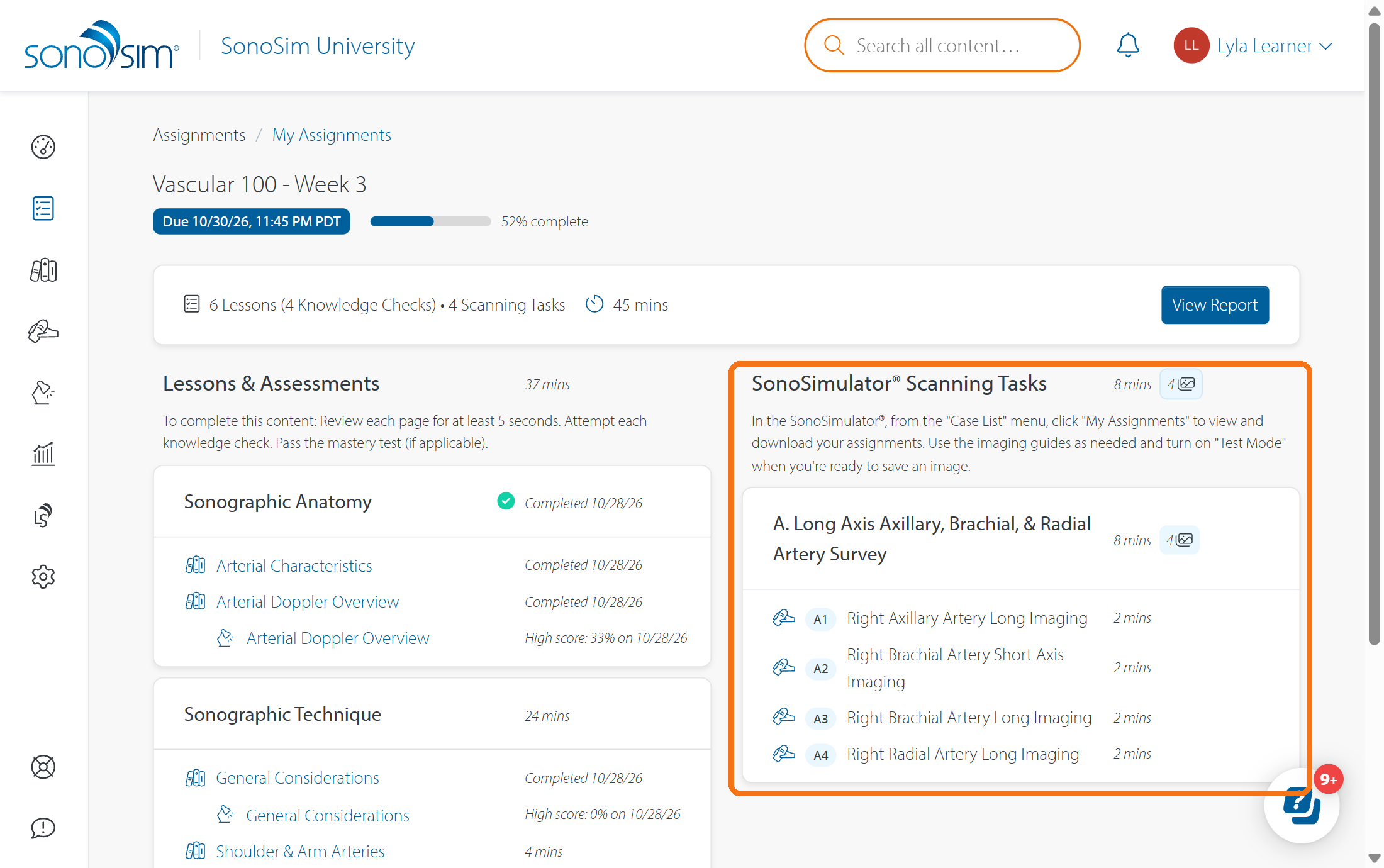
Go to Assignments → My Assignments and click an assignment title to see which SonoSimulator Scanning Tasks your instructor has assigned.
-
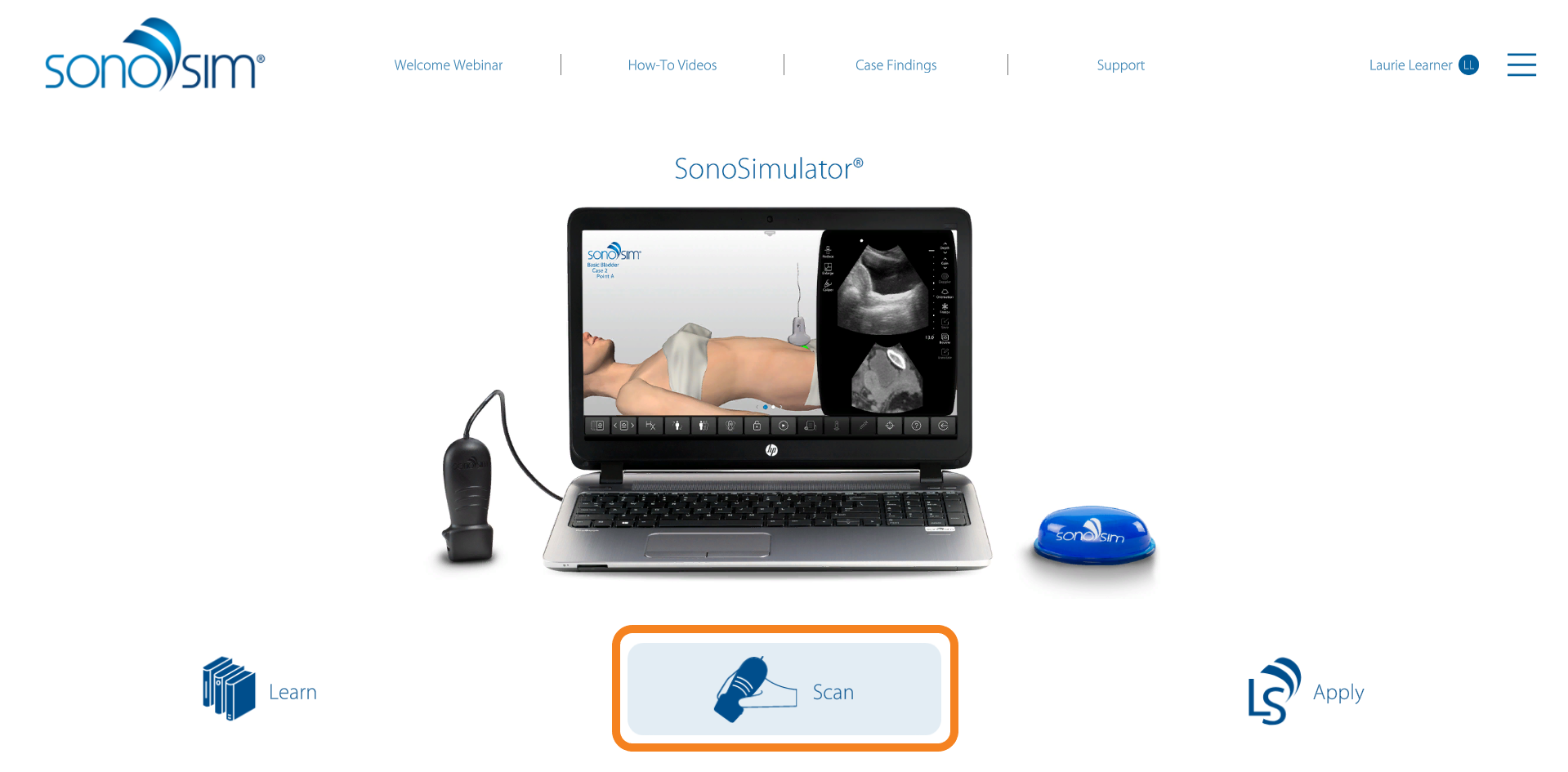
Open the installed SonoSimulator, log in, and select Scan.
-
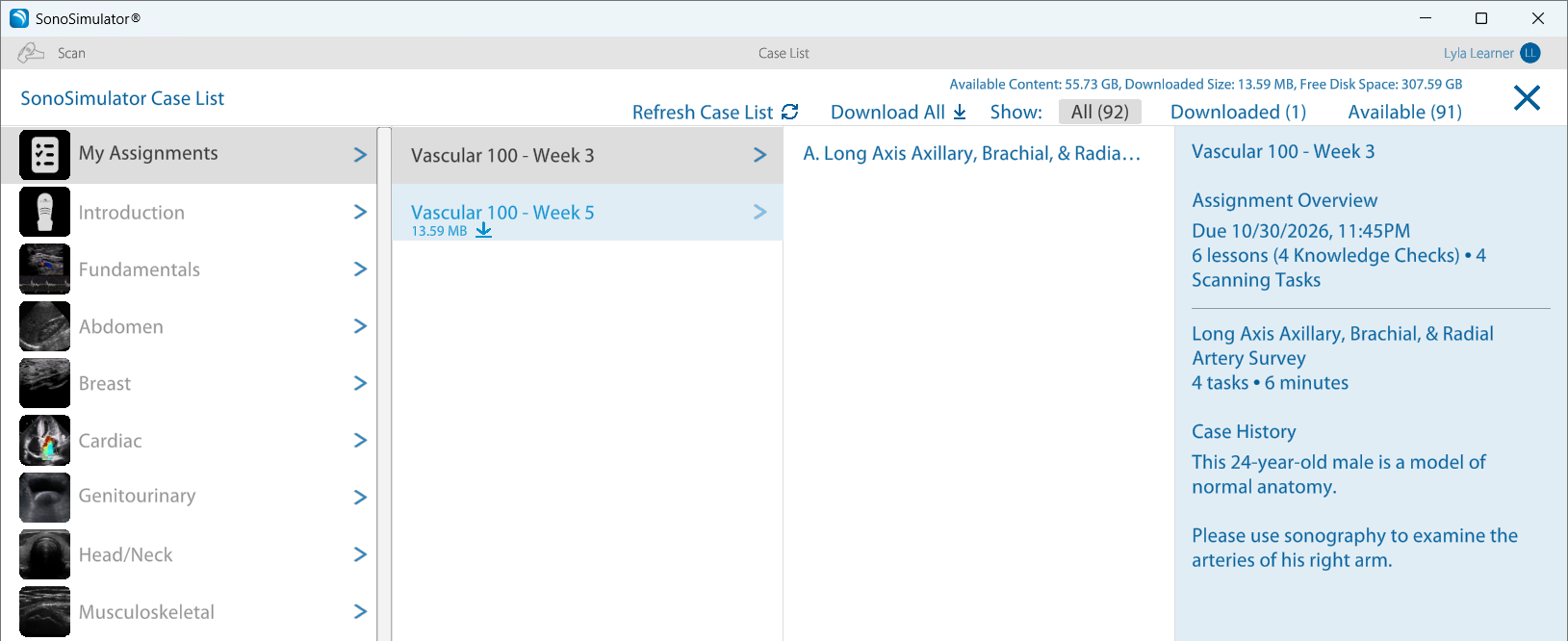
In the case list, open My Assignments, find and download your assignment, and select the first scanning activity.
Turn on Test Mode
In order to save the required images for your assignment, you’ll need to be in Test Mode.
Click the Test button in the bottom toolbar; its clipboard-and-pencil icon turns blue when turned on.
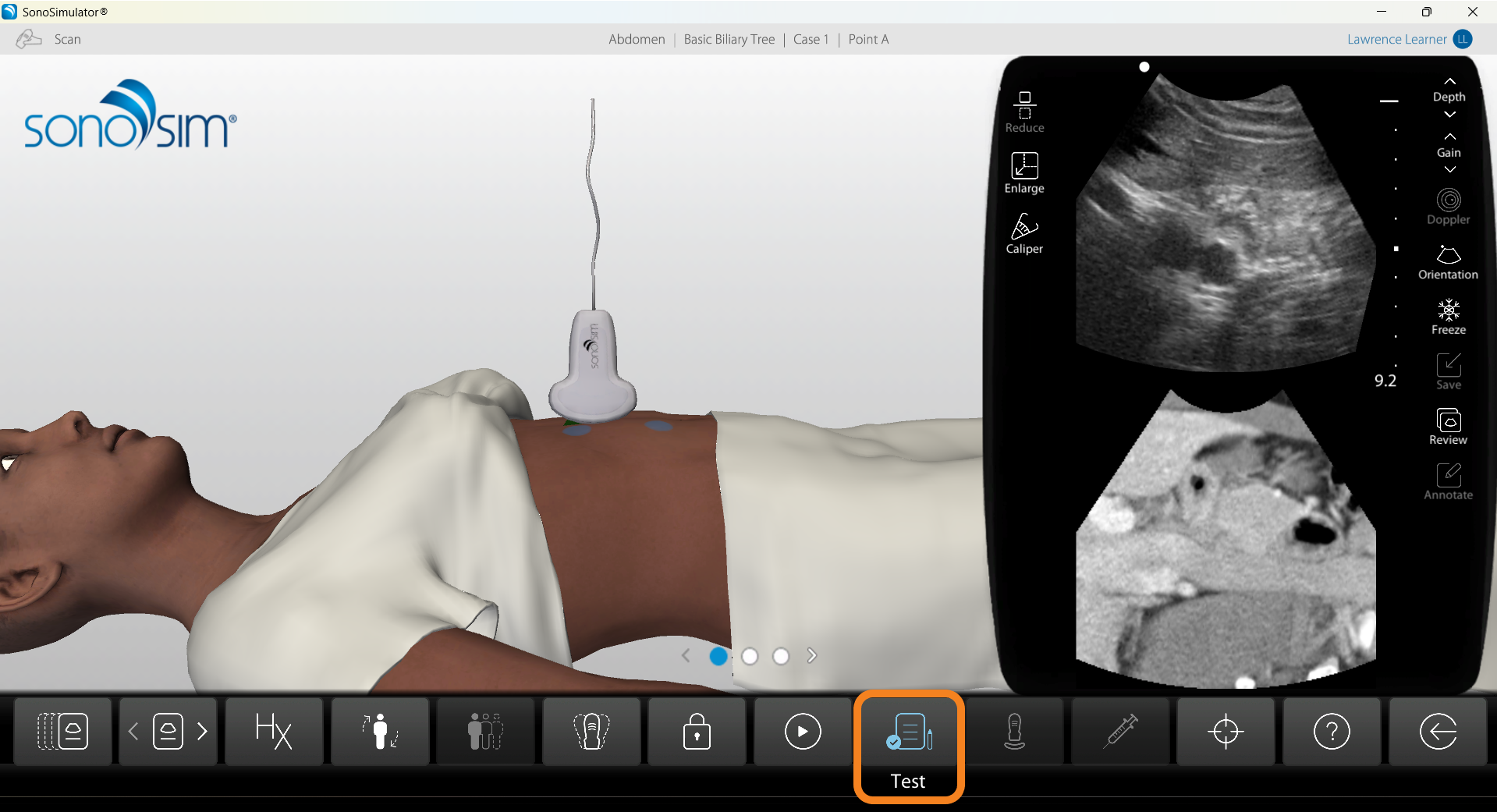
Test Mode turns off the learning aids and will require a probe calibration. If you prefer, you can review the case with the learning aids first, then turn on Test Mode before you save your image.
Follow the task instructions
After closing the Case History, an assignment side panel will open. Read and follow the step-by-step instructions in the side panel. Each task will typically ask you to scan through the entire window, acquire a specific image, and annotate your findings.
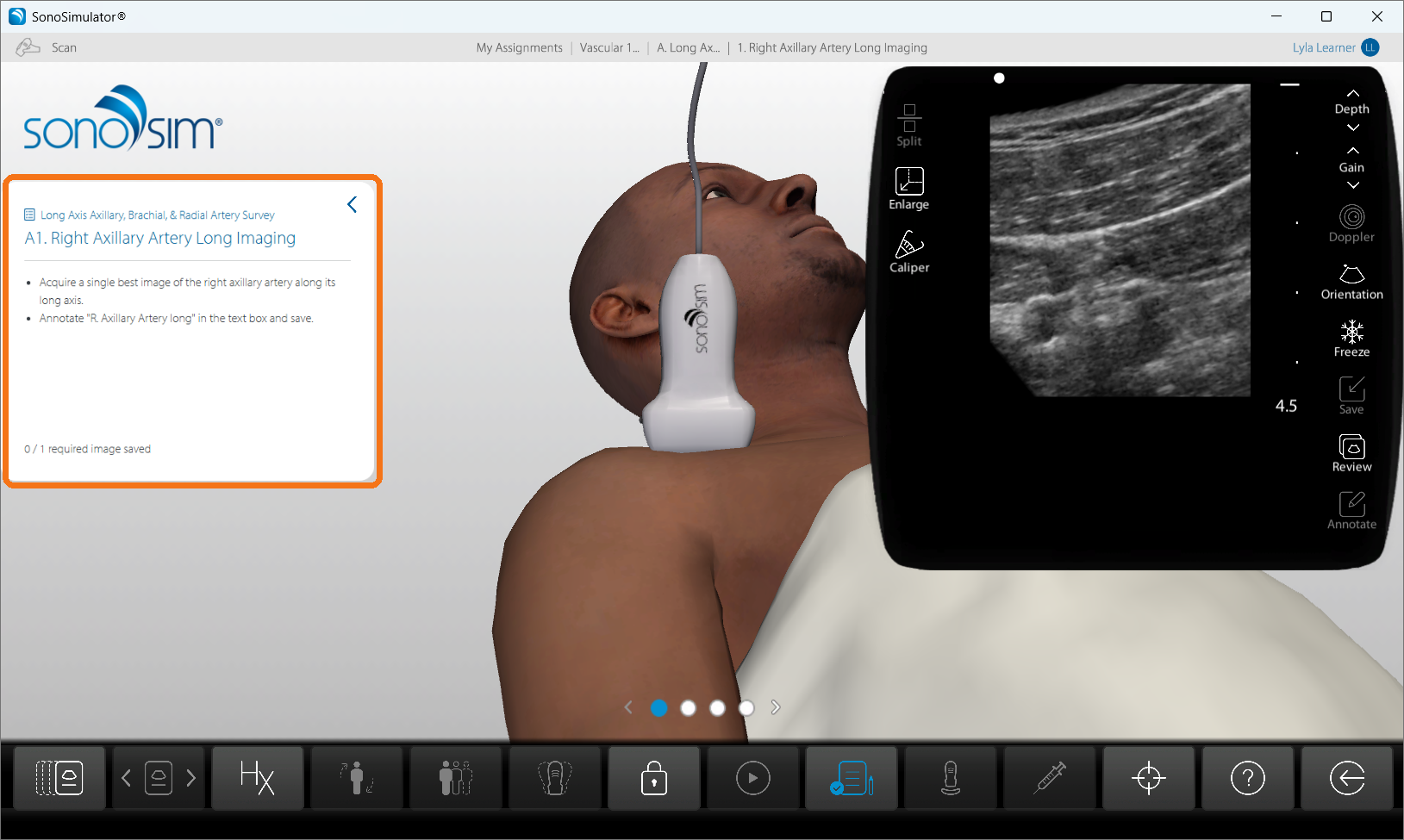
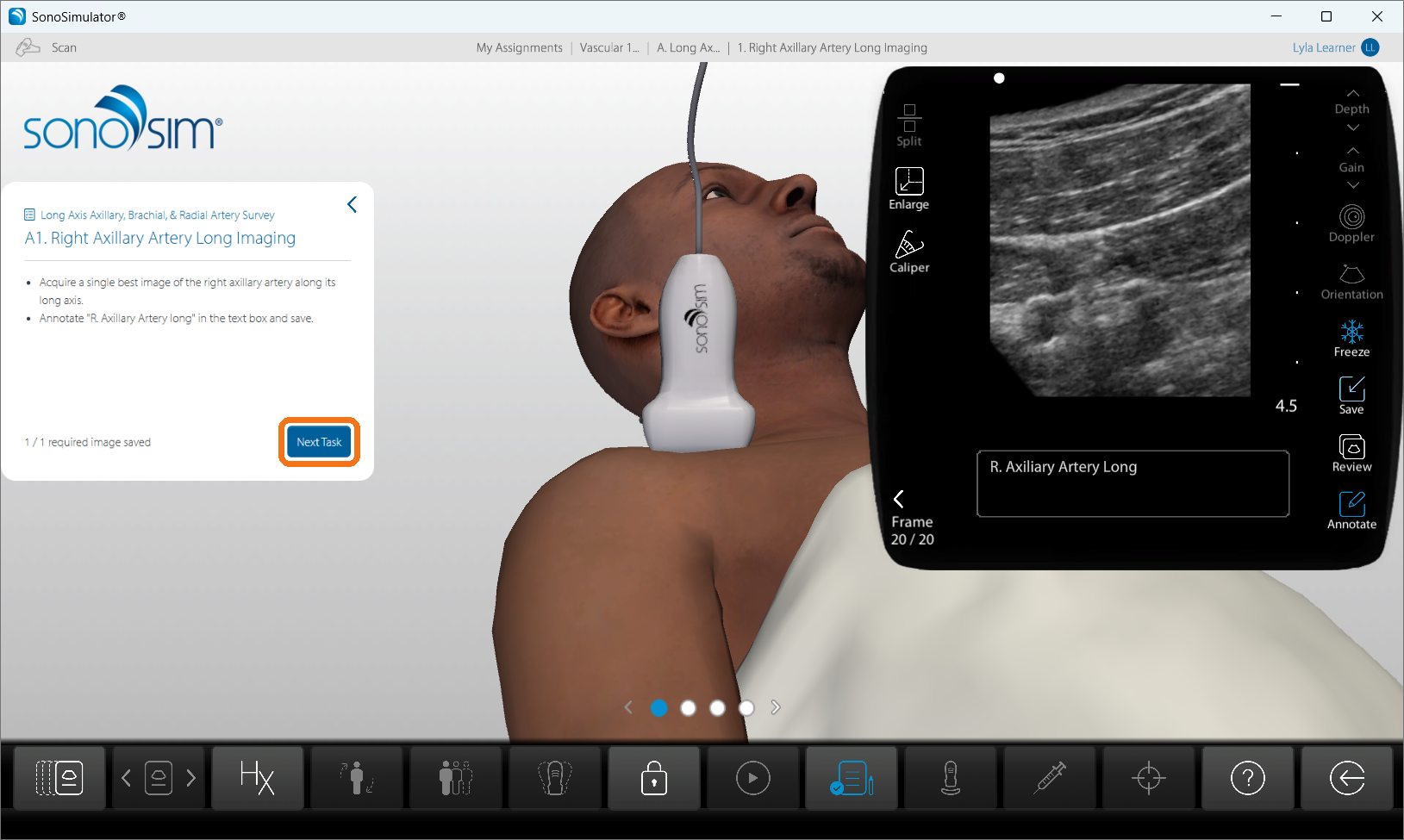
One saved image completes that task automatically. You do not need to submit anything; your saved image will immediately be available to your instructor. After saving the required image, a Next Task button will appear.
Each task can have one saved image. If you save another, you’ll be asked whether you want to replace the existing image.
Deleting a saved image marks the task as incomplete. If you don’t save a replacement, your assignment may also become incomplete.
Complete each assigned task to finish the scanning activity, then return to your assignment web page to check your progress.
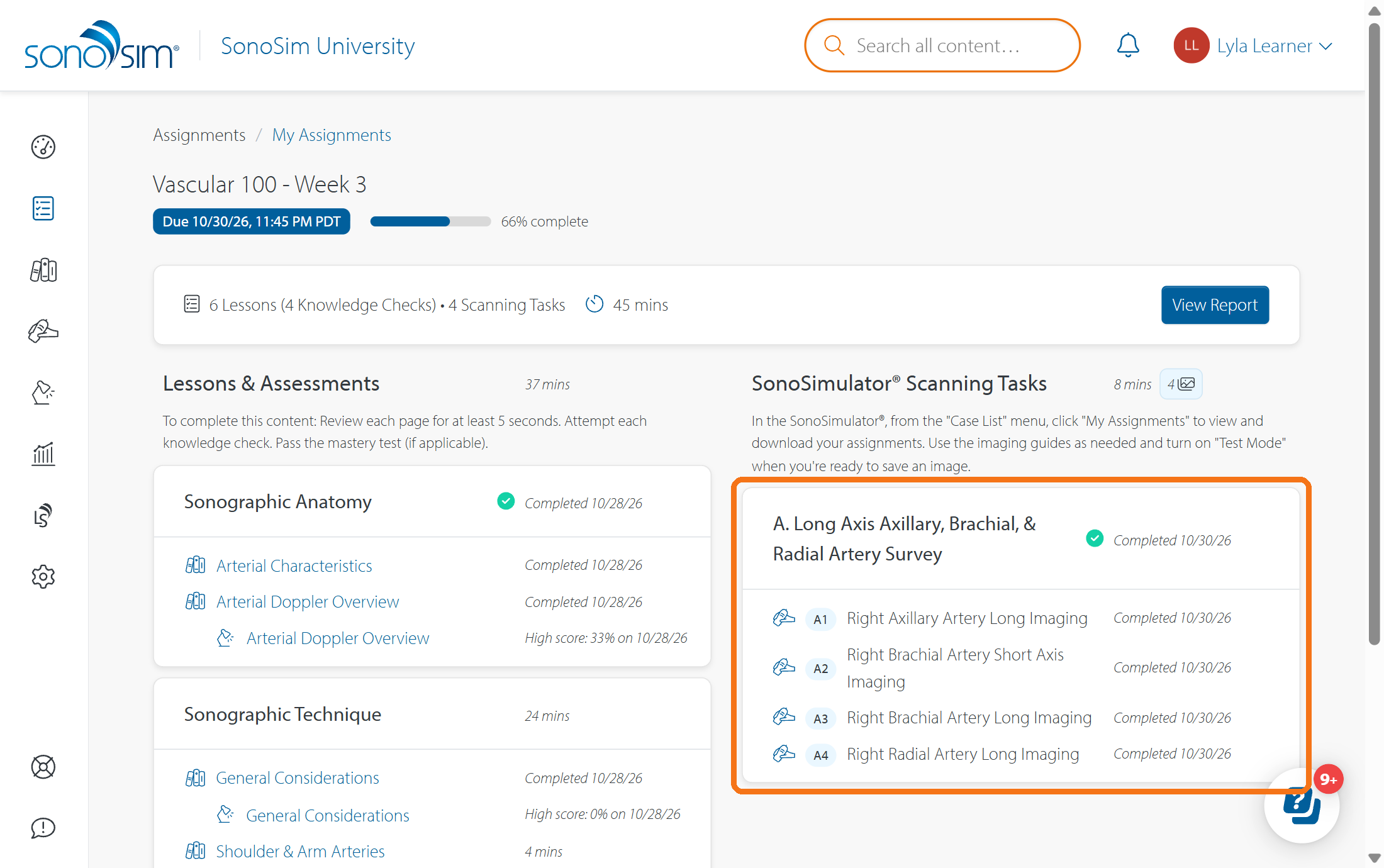
To see your saved images and instructor feedback, see Where can I see my assignment results and instructor feedback?
Contact Support
-
Give us a call: 855-873-7666
-
Schedule a virtual Support Session