
You can permanently delete an unpublished Draft that you own. After an assignment is published, you can Archive it to stop further work while keeping its history.
Delete a draft
-
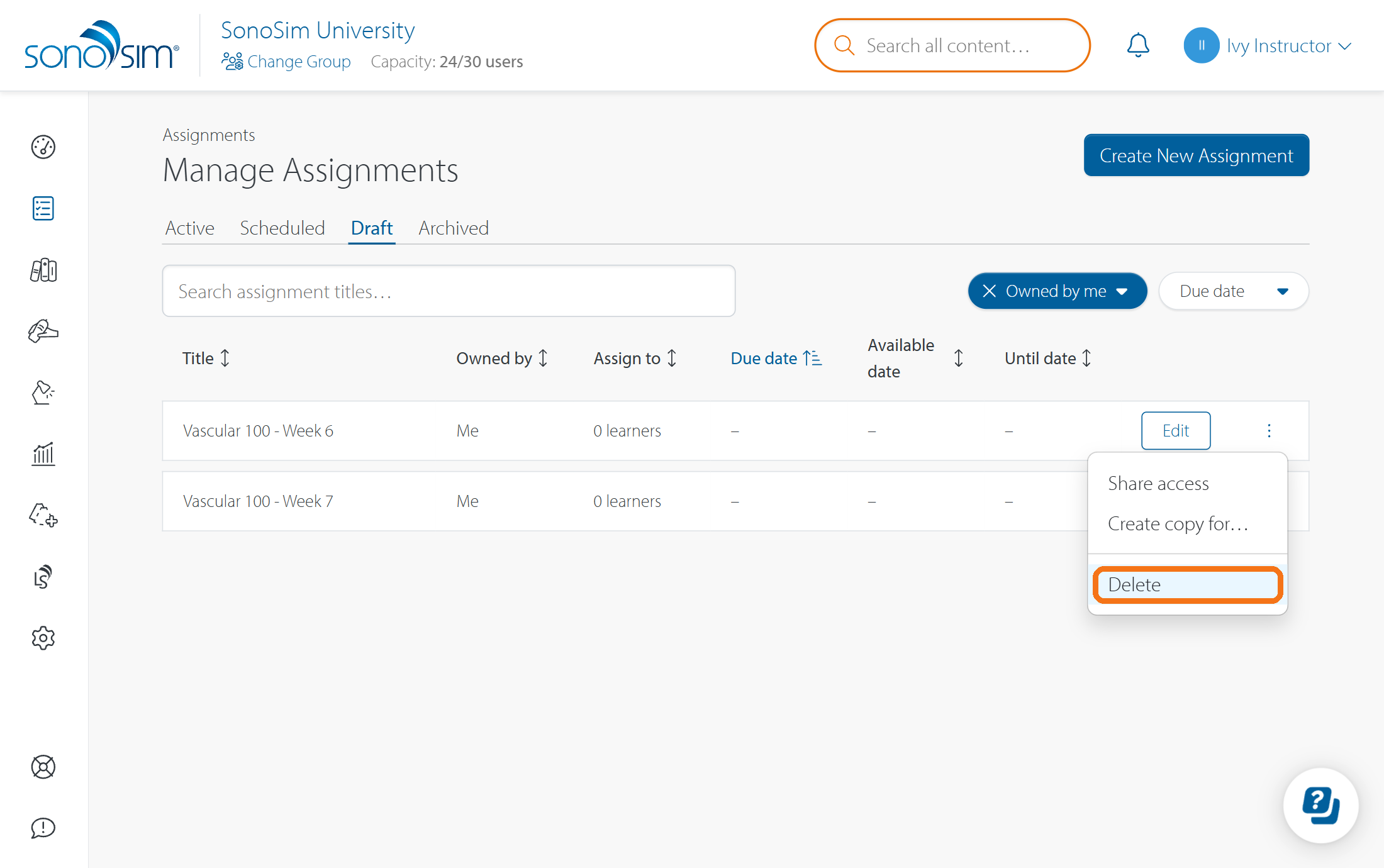
Open Assignments → Manage Assignments → Draft.
-
Find the draft, open its ••• menu, and select Delete.
-
Check the confirmation and confirm the deletion. This permanently removes the draft and its shared-admin access.
Only the assignment's Owner can delete its draft. Editors and Viewers cannot delete it. If you may want to reuse the draft, create a copy before deleting it.
Archive a published assignment
-
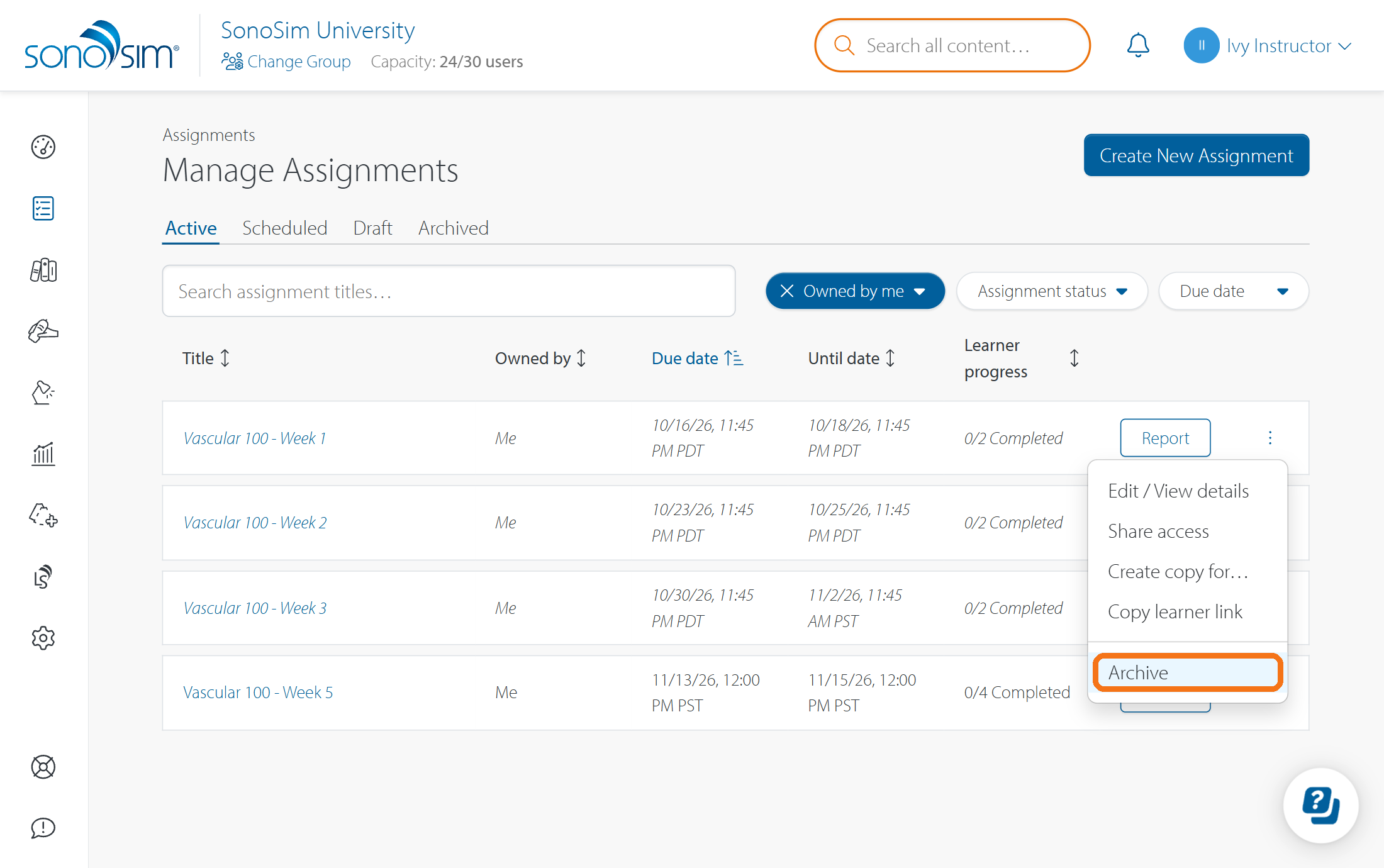
In Manage Assignments, find the assignment under Scheduled or Active.
-
Open its ••• menu and select Archive.
-
Review the confirmation and confirm. If learners can still work on it, the confirmation warns that archiving will end their access.
Owners and Editors can archive; Viewers cannot. Archiving immediately stops new learner work and moves the assignment to Archived. It preserves the assignment details, dates, learners, progress, feedback, and report history. Learners find the assignment’s details and report in their Archived view.
For more about learner access, see When will my learners stop seeing an assignment?.
Restore an archived assignment
An Owner or Editor can select Unarchive from the assignment's Archived row menu. The assignment returns to Scheduled or Active based on its original dates. Unarchiving does not change those dates or reopen learner work if its Until date has passed. Edit the dates if learners need more time.
Contact Support
-
Give us a call: 855-873-7666
-
Schedule a virtual Support Session