
Use an assignment's Report to see who has started or completed the assigned work, inspect each learner's results and saved images, and give feedback on scanning tasks. The report updates as learners work; they do not submit the whole assignment separately.
Open the assignment report
-
Open Assignments → Manage Assignments.
-
Find the published assignment under Active or Archived.
-
Select the assignment's View Report action.
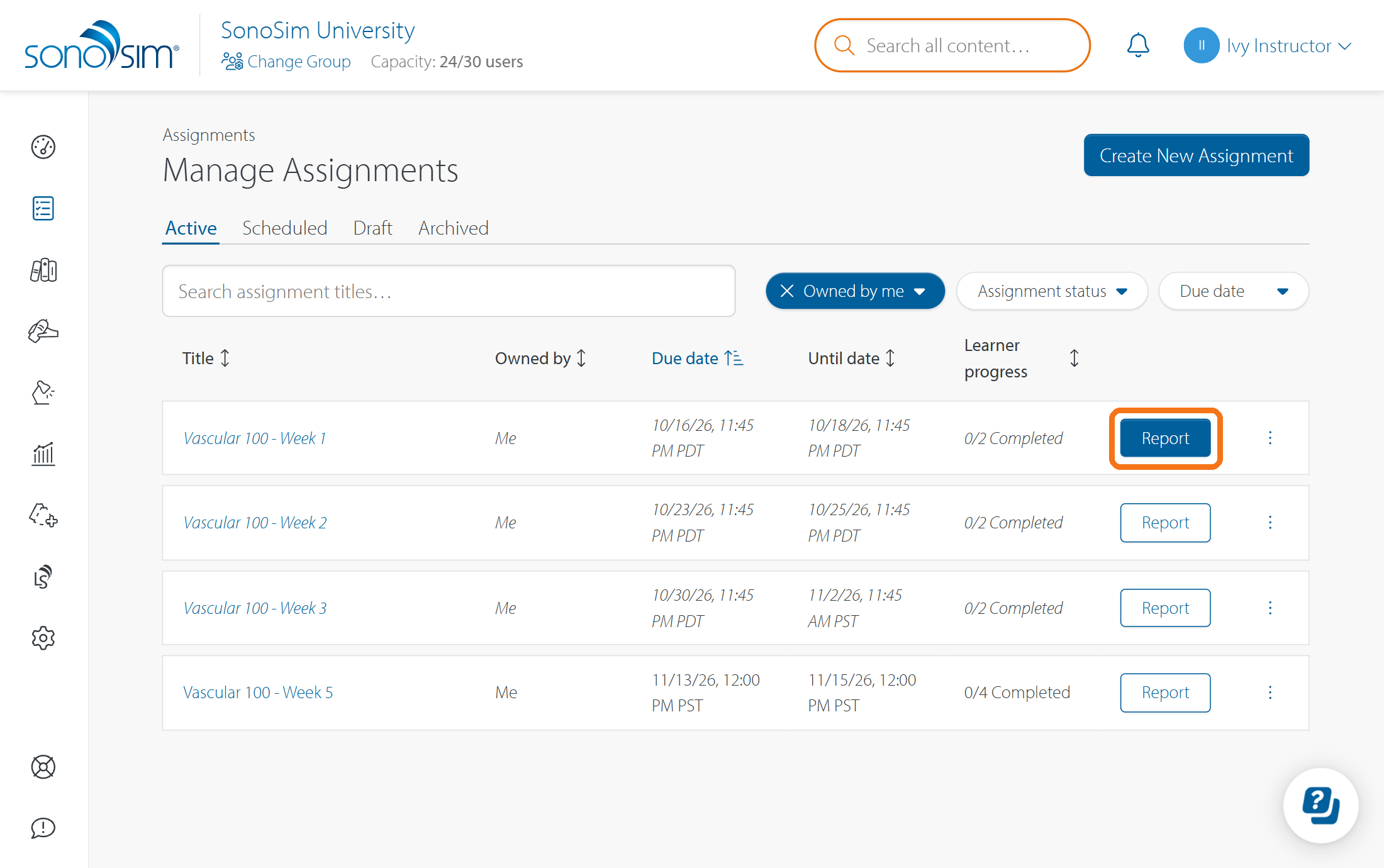
An Owner or Editor can review results and give feedback. A Viewer can review the report but cannot give feedback. See How do I share an assignment with other admins? for role details.
See how the group is doing
The report overview shows the assigned learners together. Use it to see who has not started, is in progress, or has completed the assignment. Open a learner's row to inspect their individual work. The report shows all progress by default; use its due-date filter when you need to focus on work completed before the due date. Late indicators show work completed after that deadline.
For how the assignment dates affect access and late work, see How do Available From, Due Date, and Until Date work?
Review one learner's work
Open a learner from the overview, then use the tabs for the content you assigned:
-
Overview: Overall progress for this assignment.
-
Lessons: Lesson completion, knowledge-check attempts and results, and time spent. Where a knowledge-check score appears, it is the learner's highest score.
-
Mastery Test: The learner's result and whether they met the passing requirement.
-
Scanning Activities: Required tasks, saved images, completion or late status, and any image feedback.
The report tracks the selected work in this assignment. A scanning task is complete when the learner saves its required image; completion does not mean the image has passed instructor review.
Review an image and publish feedback
-
In the learner's report, open Scanning Activities and select the assigned task and saved image you want to review.
-
Use the image feedback controls to record your grade and comments or annotations, as applicable.
-
Review your feedback, then publish it to make it available in the learner's assignment report.
Feedback that has not been published is not visible to the learner. Once feedback is published, the learner can review it in their assignment report and cannot delete or replace that image. See Where can I see my assignment results and instructor feedback? for the learner view.
Export results
Use the report's CSV or PDF export when you need an assignment record outside SonoSim. Choose the report view and date filter you want to capture, then select the export format. If you are editing image feedback, finish or leave that mode before exporting so the report reflects the intended published state.
Contact Support
-
Give us a call: 855-873-7666
-
Schedule a virtual Support Session