
Create a SonoSim assignment to give learners a specific set of lessons, assessments, or scanning tasks from one module. The assignment builder takes you through three steps: Select Template, Select Content, and Enter Details.
Create a new assignment
-
Open Assignments → Manage Assignments in the sidebar.
-
Select Create New Assignment.
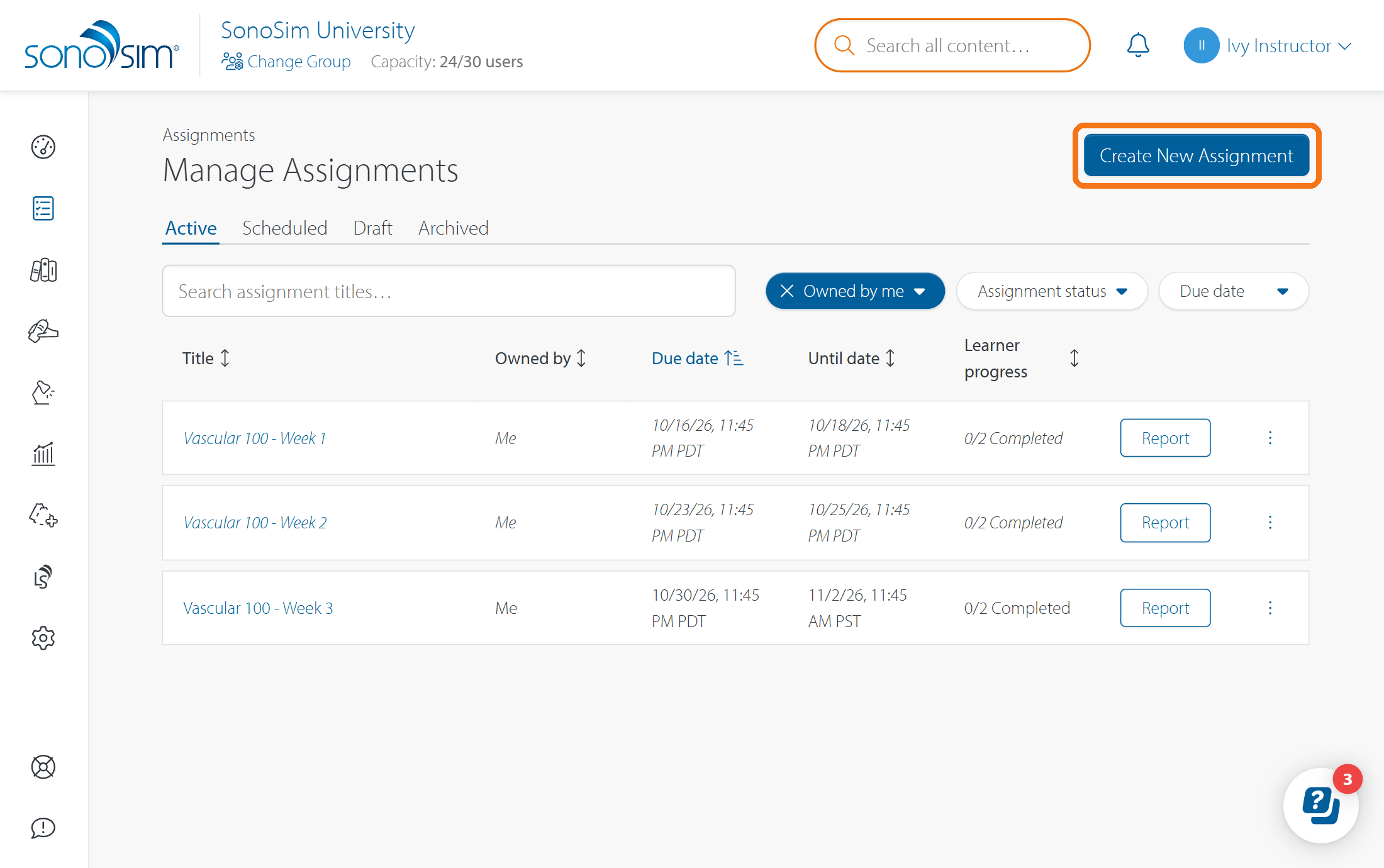
For admins that manage multiple groups (e.g., multi-campus institutions): confirm that the correct group is selected at the top of the page. The selected group determines which content and learners are available for the assignment.
Step 1: Select Template
Select the module or DMS protocol containing the work you want to assign. This will be your template, i.e., your starting point; you will choose the exact sub-set of content in the next step. Each assignment draws from one module or DMS protocol. To assign work from another module or DMS protocol, create a separate assignment.
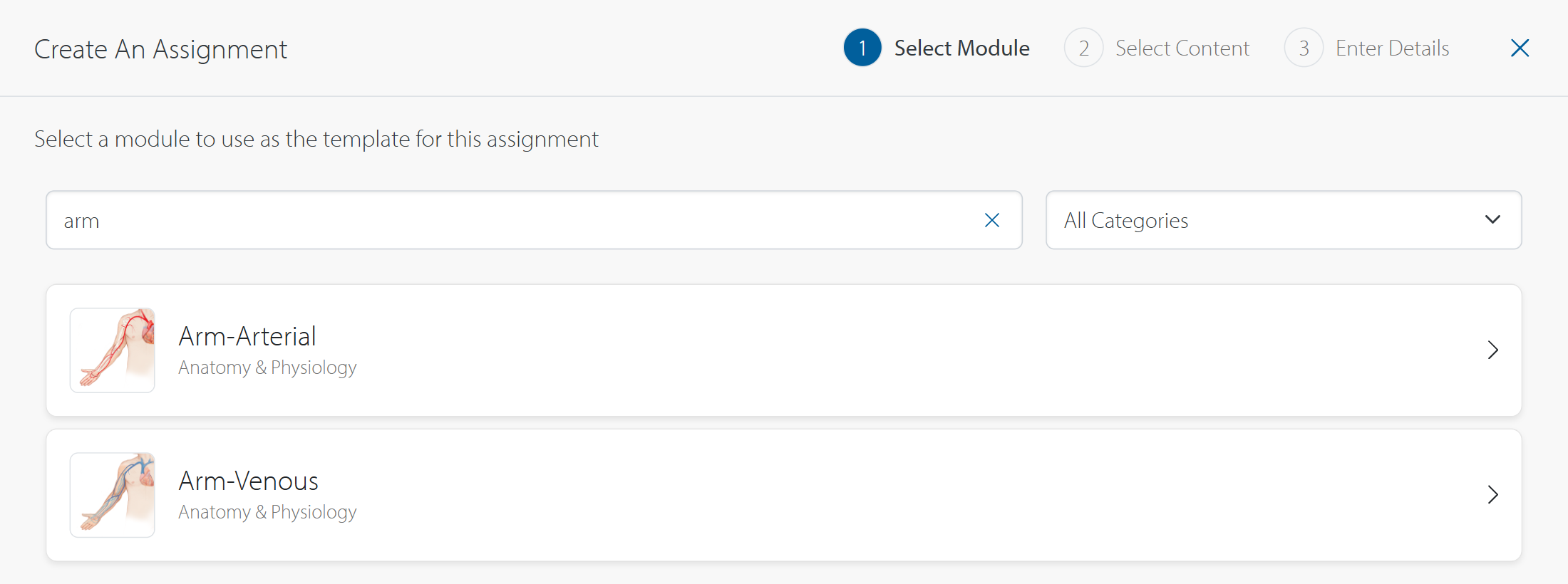
While the majority of SonoSim content is compatible with assignments, there are a few exceptions; see What SonoSim content can I include in an assignment? to learn more.
Step 2: Select Content
Assign all content within a template or select only a subset. You can assign course lessons and assessments, scanning tasks, or a combination.
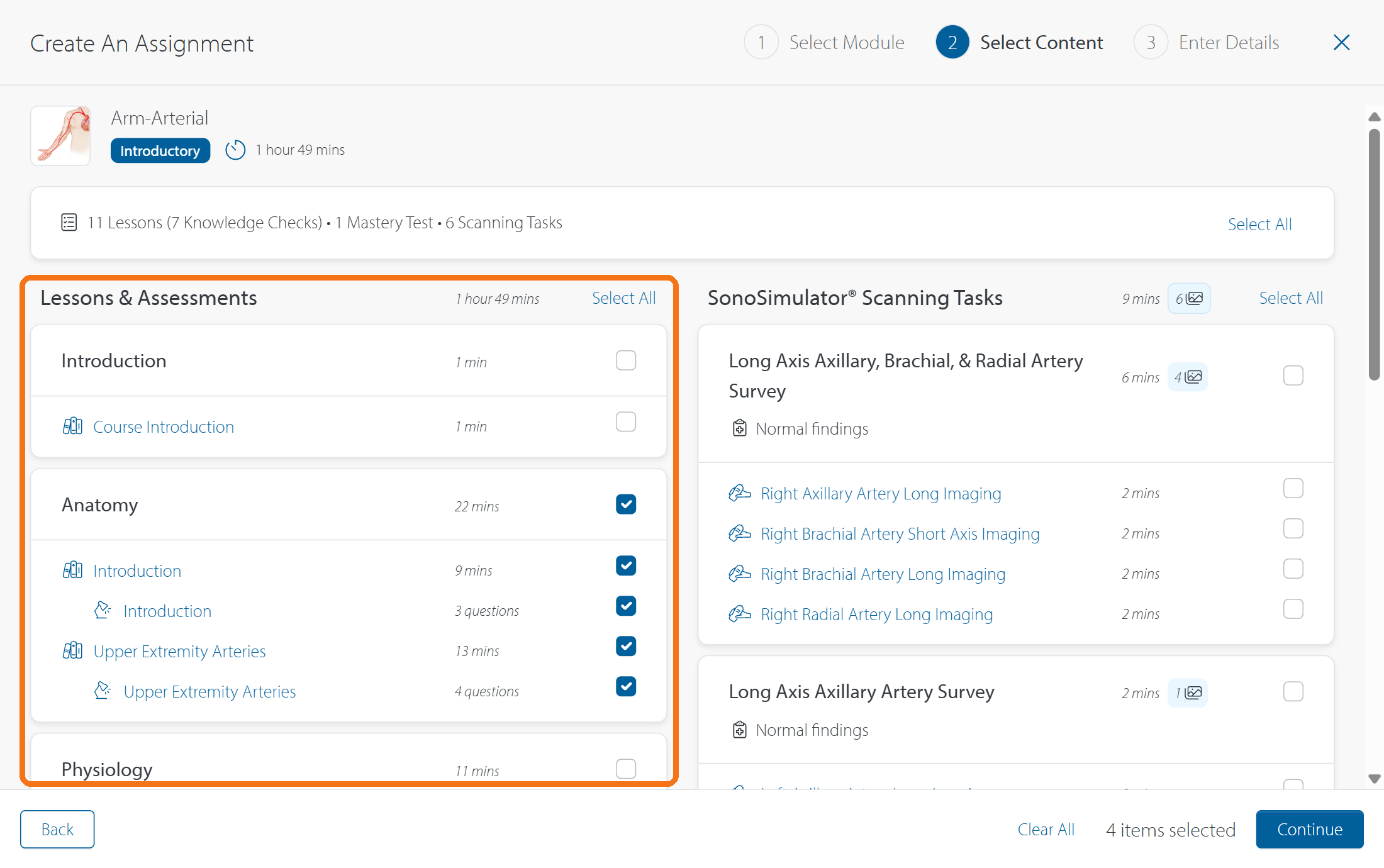
Choose lessons and assessments
Under Lessons & Assessments, select the individual lessons, knowledge checks, or mastery test that fit your learning goal.
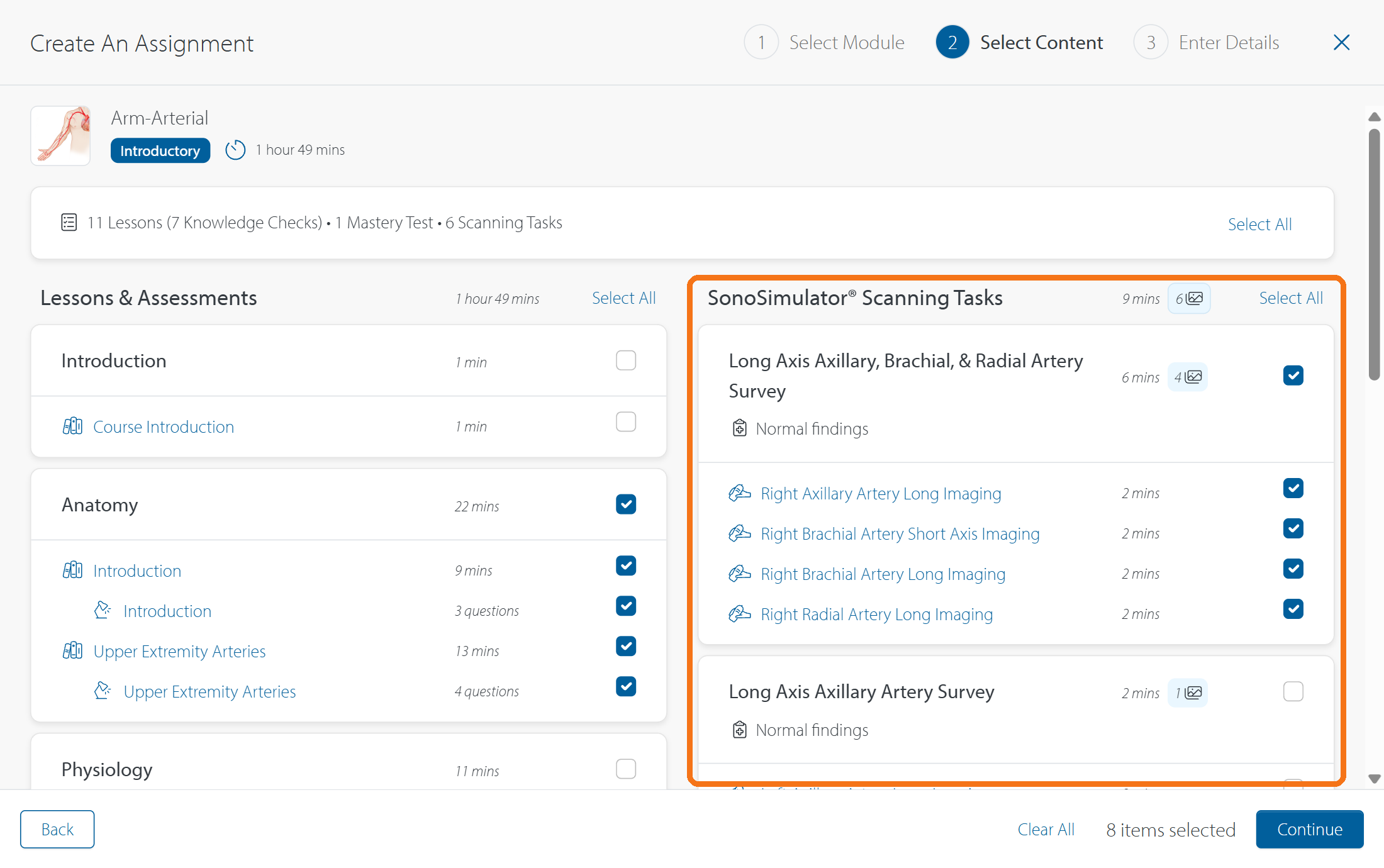
Choose SonoSimulator scanning tasks
Under SonoSimulator Scanning Tasks, the content is grouped into activities and tasks. Select the entire activity with all connected tasks or just the individual tasks you want learners to complete. Each scanning task calls for exactly one saved image in the SonoSimulator.
Preview content before selecting it
Click the links to open a preview of that content, to help you determine if it should be included.
-
The Lesson Preview will show all pages within a lesson
-
The Assessment Preview will show all questions and answers within an assessment
-
The Scanning Task preview will show the activity overview (i.e., patient history and key finding), the specific step-by-step instructions your learner will see inside the SonoSimulator, the Reference Image (i.e., the optimal image for that window), and the Findings Video.
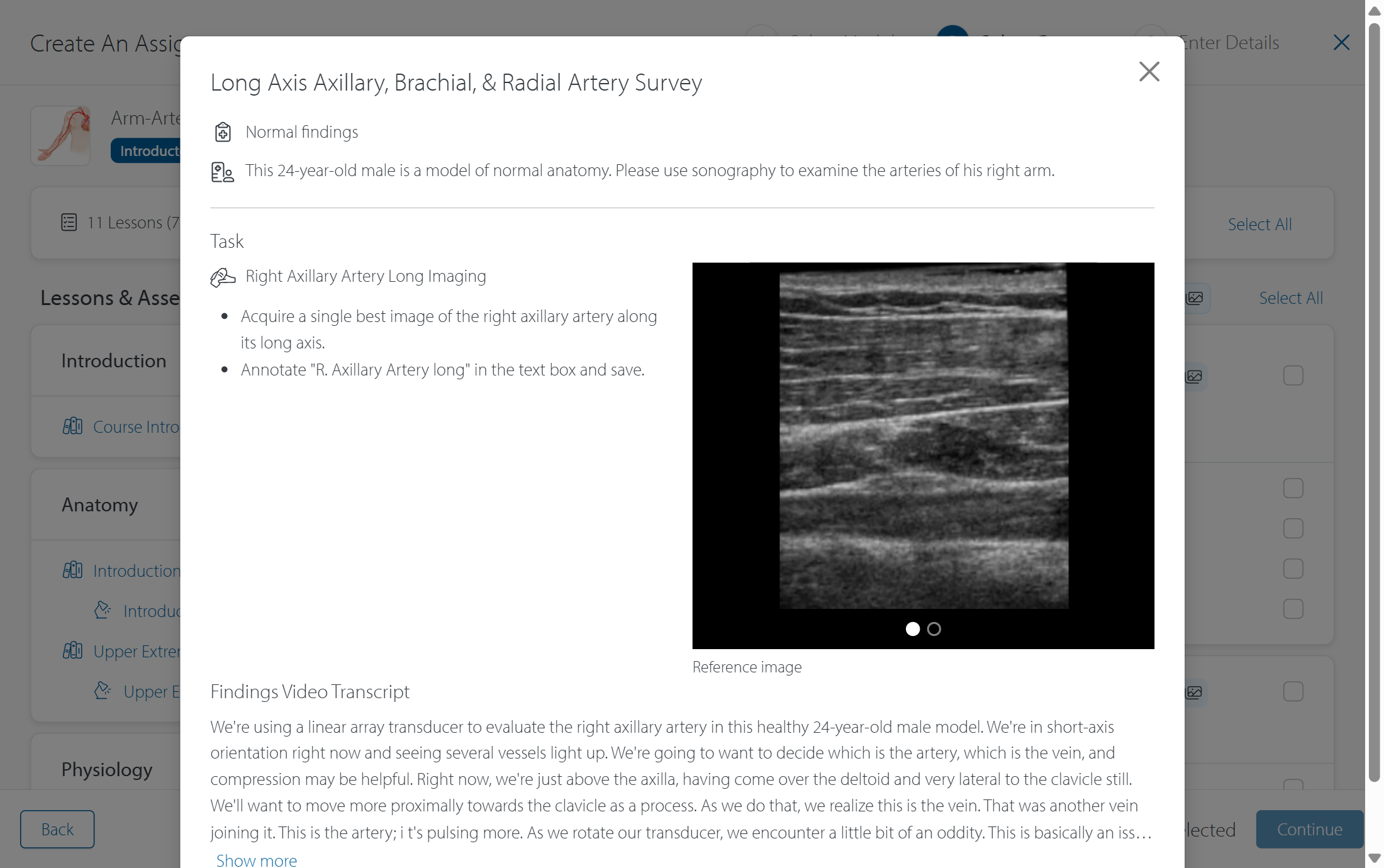
For more information on previewing content, see How do I view the content before I assign it?
When you’re happy with your selections, continue to Enter Details.
Step 3: Enter Details
Add a title and optional instructions
Give the assignment a title. Add any instructions you’d like to include, e.g., “Read Chapter 2 before completing the SonoSim assignment.” A title is required to save a draft or publish.
Choose your learners
Select an entire subgroup, individual learners, or both. At least one learner must be added to publish.
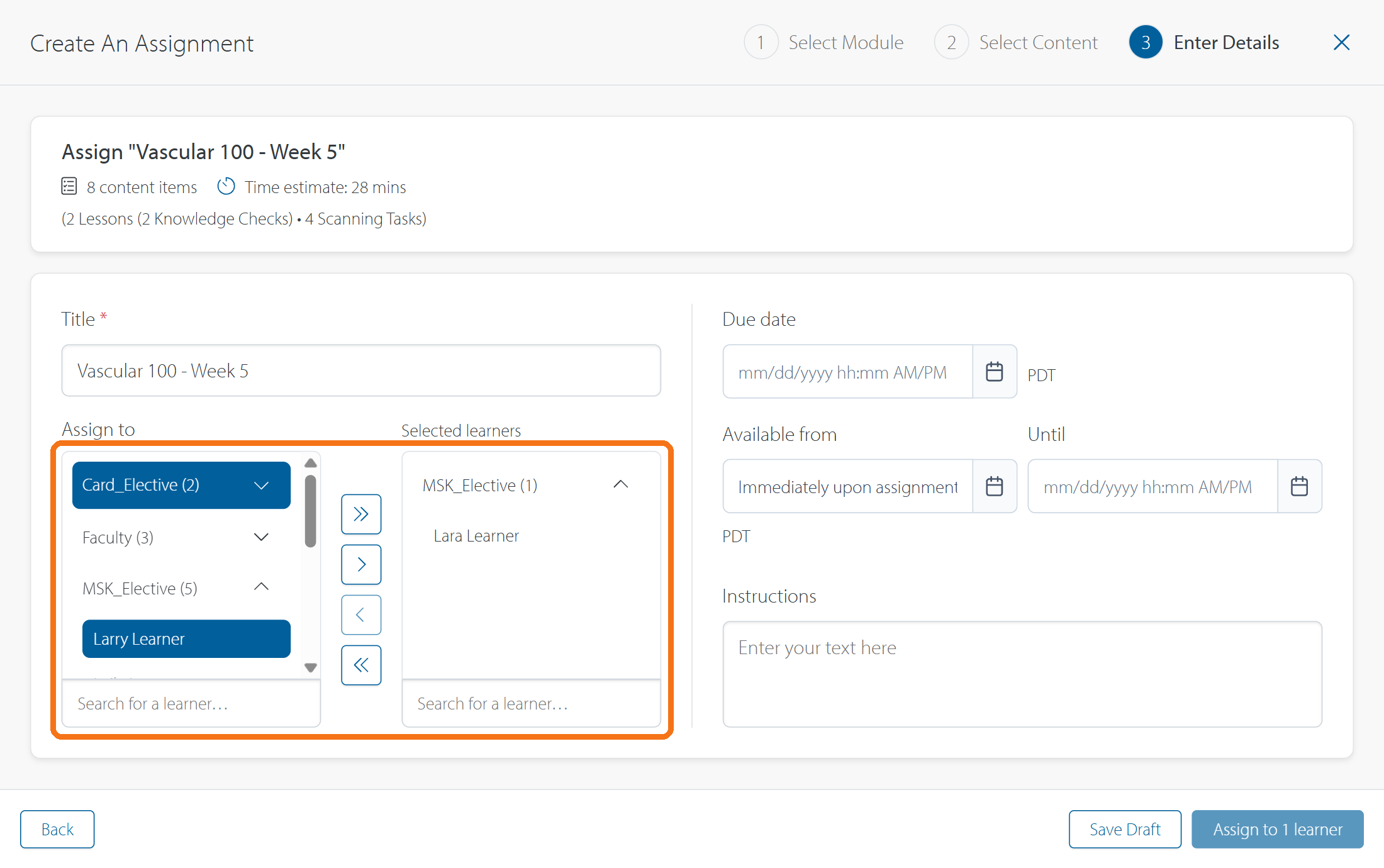
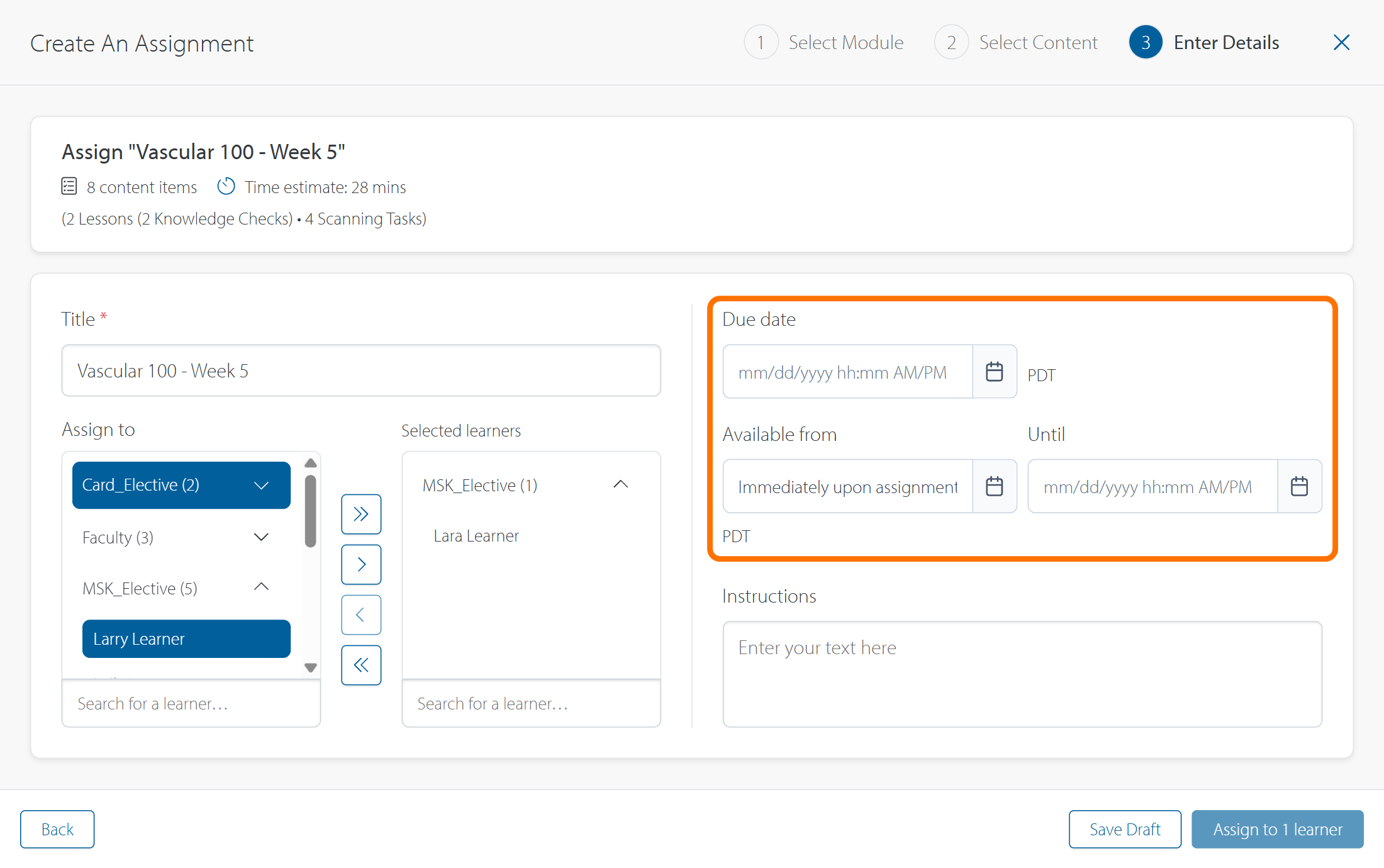
Set the assignment dates
-
Available From determines when a published assignment first becomes visible to learners. If you do not choose a future time, availability begins when you publish.
-
Due Date is the required deadline. Work completed after this date (if allowed) is late.
-
Until Date is an optional cutoff for completing more work. An Until Date after the Due Date allows a late-work window.
See How do Available From, Due Date, and Until Date work? for examples and date rules.
Save or publish
Save as a draft
Select Save as draft if you’re still working on defining requirements and need to return later. Your selected content and entered details are saved. Find the assignment under Draft in Manage Assignments. A draft remains invisible to learners until you explicitly publish it.
Publish now or schedule for later
When the assignment is ready, click the Assign to X learners button to publish the assignment. A published assignment that is available immediately appears under Active in Manage Assignments.
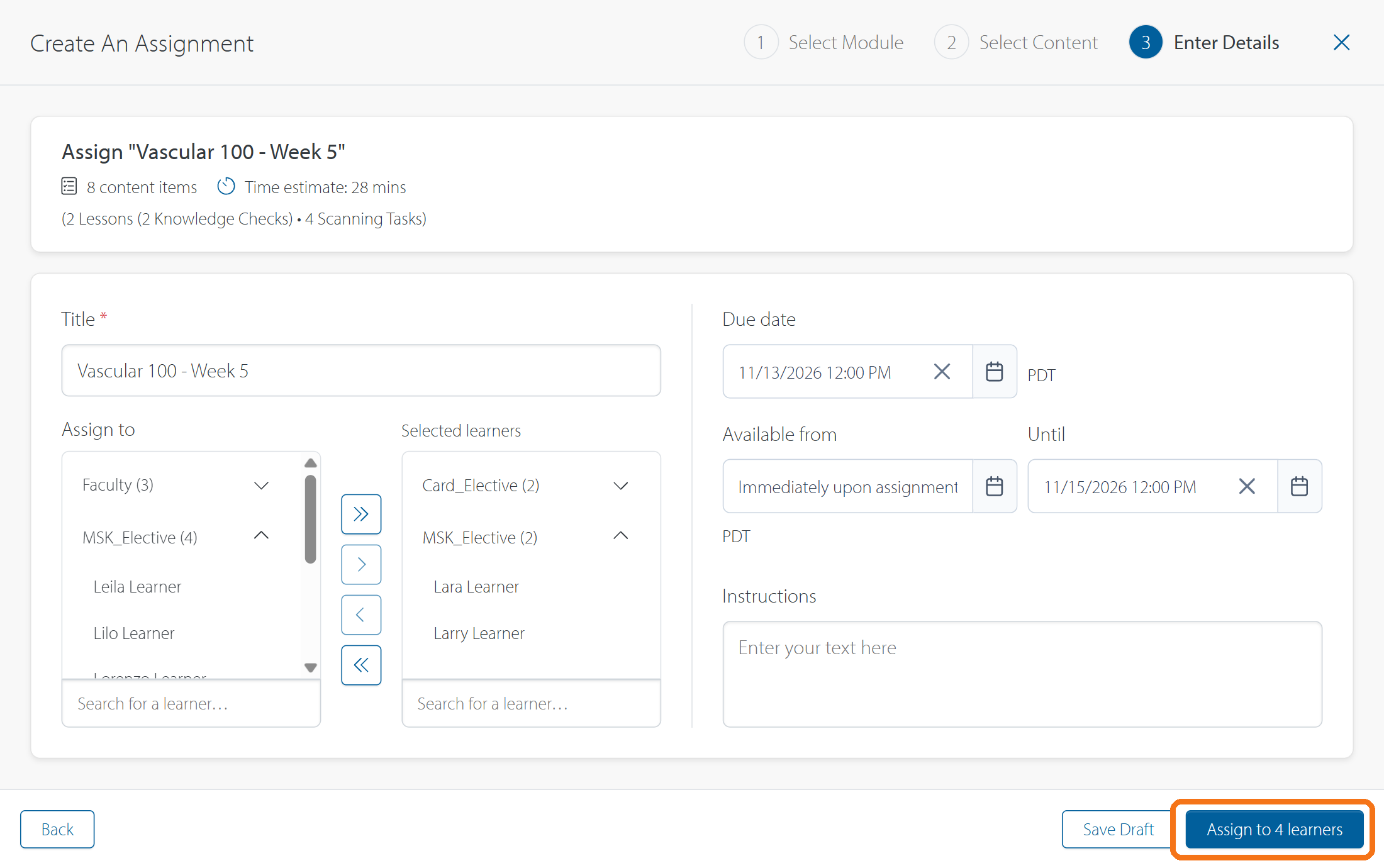
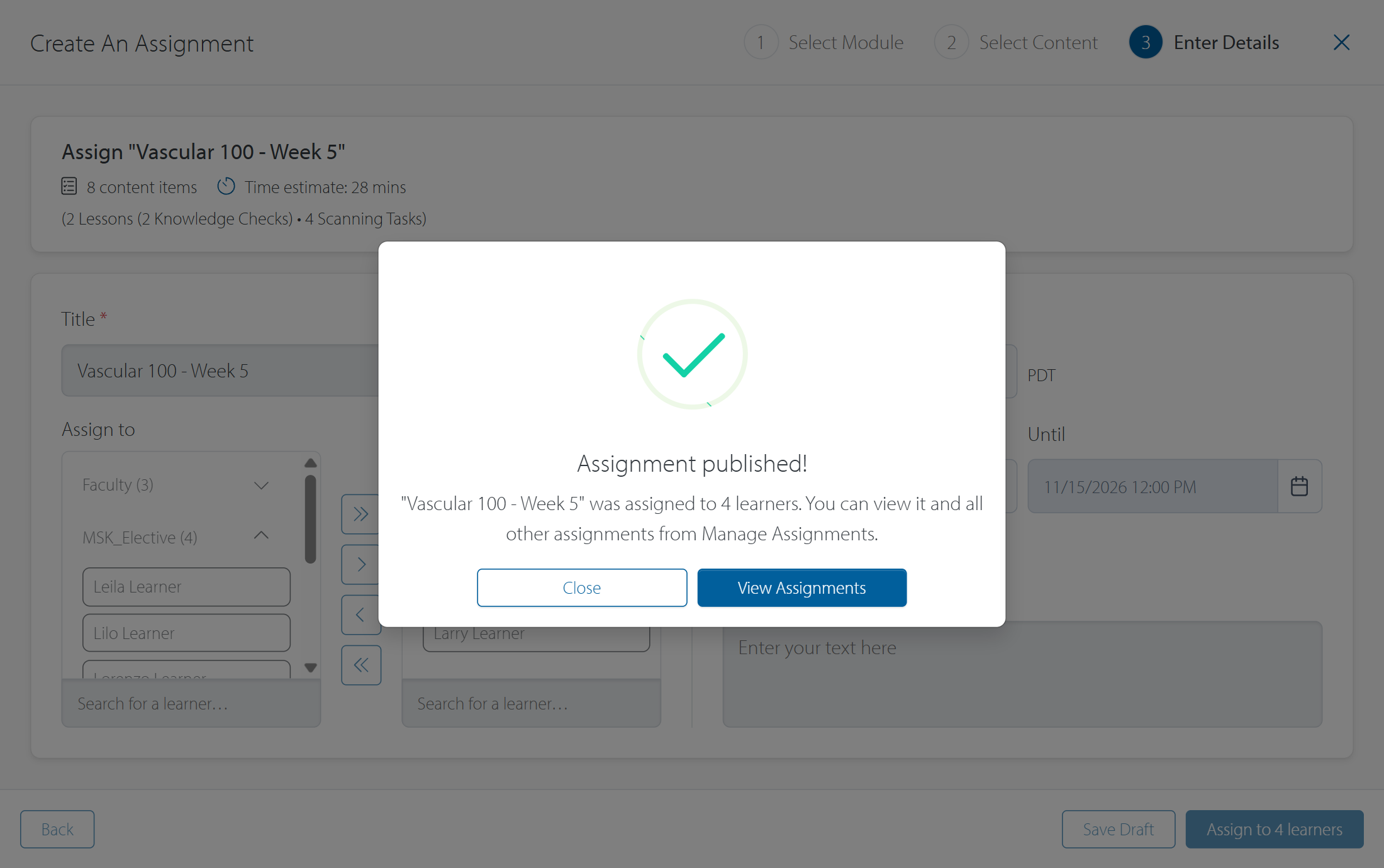
If its Available From datetime is in the future, it appears under Scheduled and will not be visible to learners until that datetime hits.
For more info, see What is the difference between Active vs Scheduled?.
After you publish
Learners can find the assignment in My Assignments once it becomes available.
You can return to Manage Assignments to edit the published assignment, preview its learner experience, or review its report and give feedback.
Contact Support
-
Give us a call: 855-873-7666
-
Schedule a virtual Support Session