
If you have Owner or Editor access on an assignment, you can update it from Manage Assignments. What you can change depends on whether it is still a draft or has been published.
Open the assignment
-
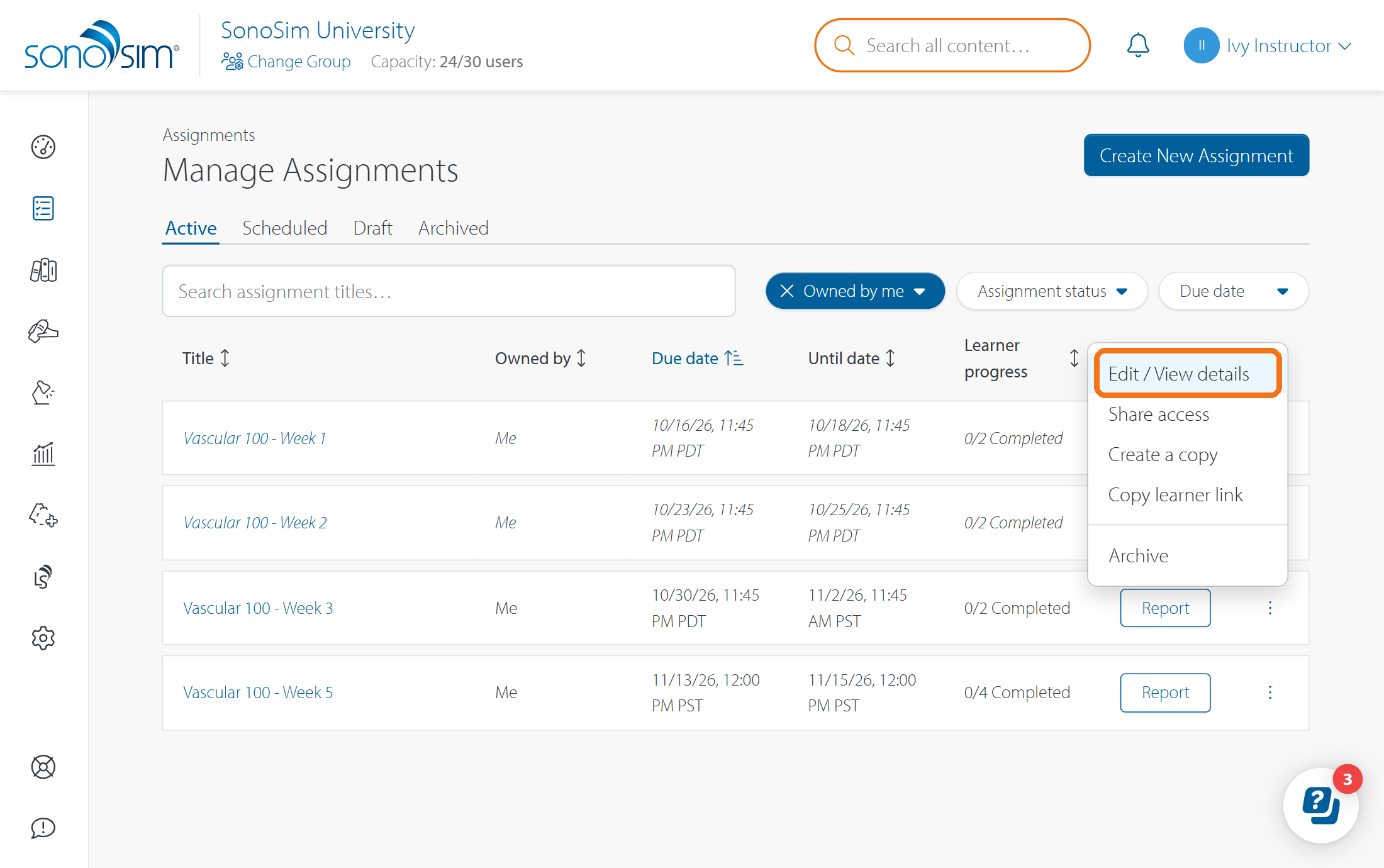
Open Assignments → Manage Assignments.
-
Find the assignment under Draft, Scheduled, or Active.
-
Select Edit for a draft or Edit / View Details for a published assignment.
Edit a draft
When editing, you’ll start in the Enter Details view; here, you can update the title, instructions, learners, and dates.
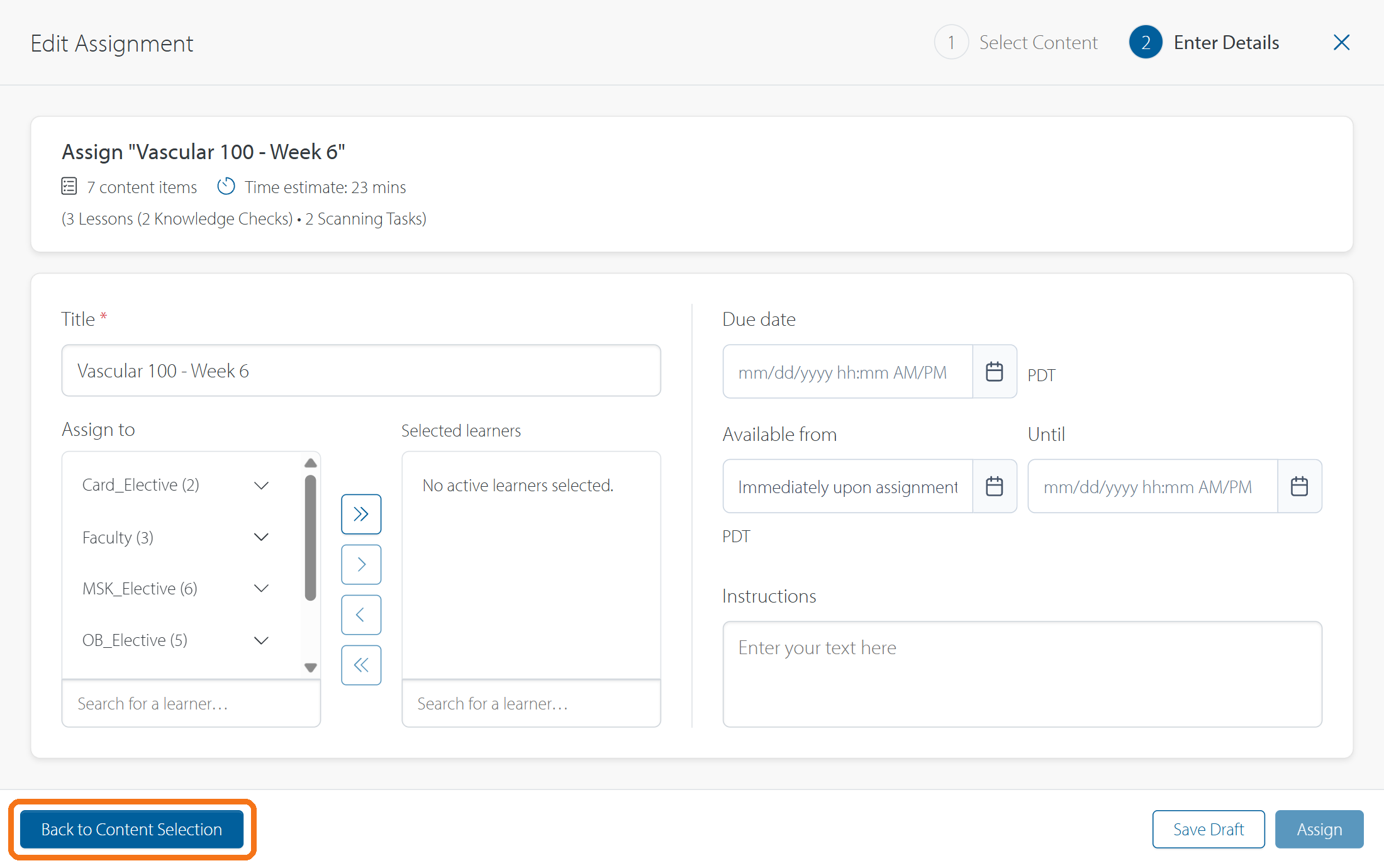
To change content selections, use the Back to Content Selection button in the lower left (see above). In the Select Content page, you can add or remove content from the draft's original source template.
The source template (module or DMS protocol) cannot be changed after the draft is saved. If you chose the wrong template, create a new assignment.
Select Save Draft to keep the assignment unpublished, or Assign to X learners when you are ready to publish it. A draft does not become visible to learners until you publish it.
Edit a published assignment
Content is Locked
You can edit anything on the Edit Details page, but the Select Content page is locked. You can review the assigned items in Select Content, but you cannot add or remove them. To assign different content, create a new assignment.
Note on Adding or Removing Learners
You can add or remove learners, but at least one learner must remain assigned. Removing someone hides the assignment (including their progress report and saved images) from that learner and from the admin report; their previous work is retained if you add them back later.
Note on Changing Dates
Changing the dates can affect when learners see the assignment or can continue working (e.g., adding an Available From date may hide a previously visible assignment). See How do Available From, Due Date, and Until Date work? before changing an active assignment's schedule.
If you cannot edit
An assignment shared with you as a Viewer opens in read-only View Details. An Archived assignment is also read-only until an Owner or Editor unarchives it.
Contact Support
-
Give us a call: 855-873-7666
-
Schedule a virtual Support Session