
Open your assignment report to see your progress, assessment results, saved scanning images, and any feedback your instructor has published. You can check the report while an assignment is in progress and return to it after the work closes or is archived.
Open your report
-
Open Assignments → My Assignments.
-
Find the assignment, then click the View Report button.
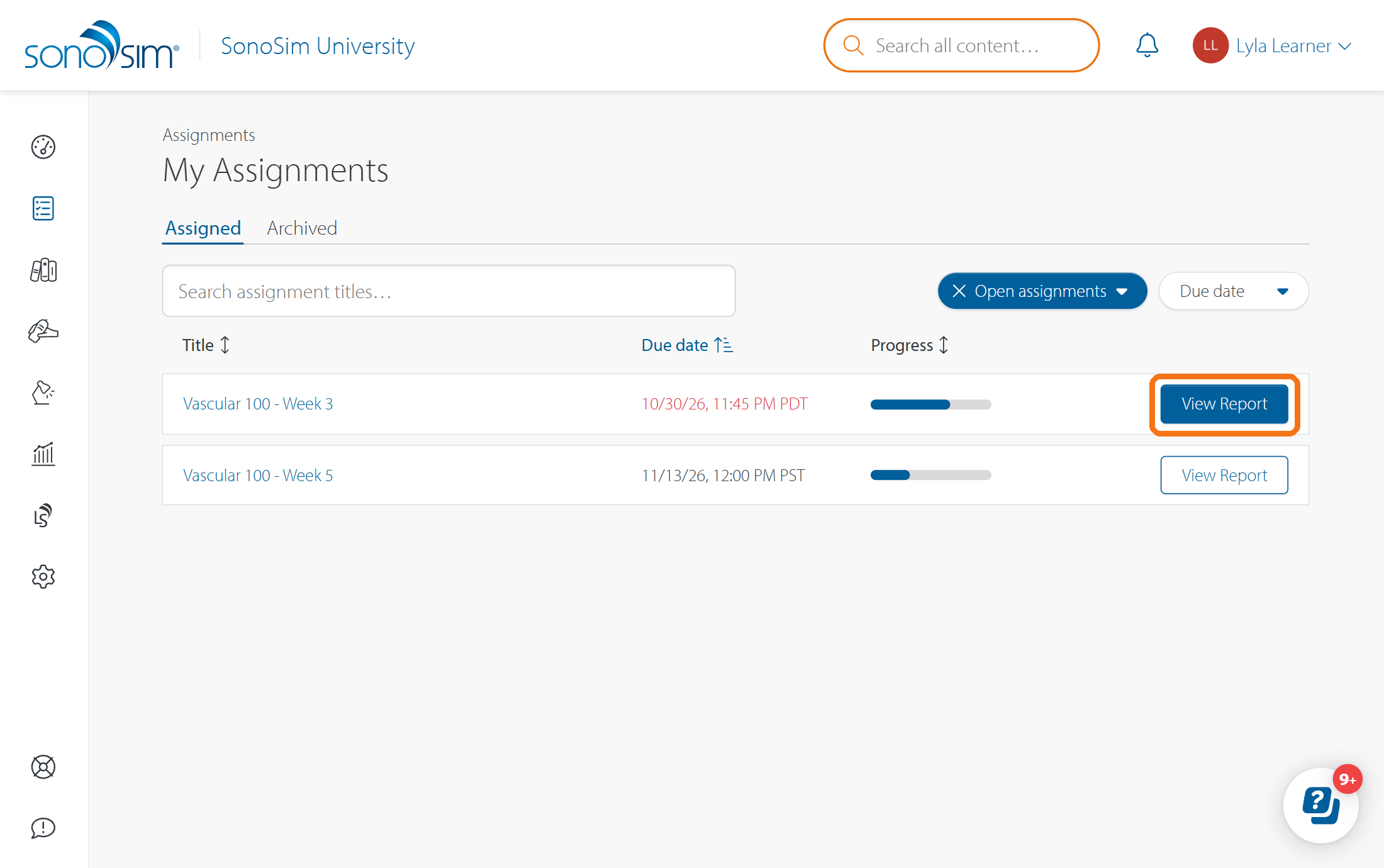
If you cannot find an older assignment, see I can't find my past assignments.
Check progress and results
Start with Overview for your overall assignment progress. The report also has tabs for the specific activity types: Lessons & Knowledge Checks, Mastery Test, and/or Scanning Tasks. Open a tab to see completion details and any available assessment results for that part of the assignment. Work completed after the due date is marked late.
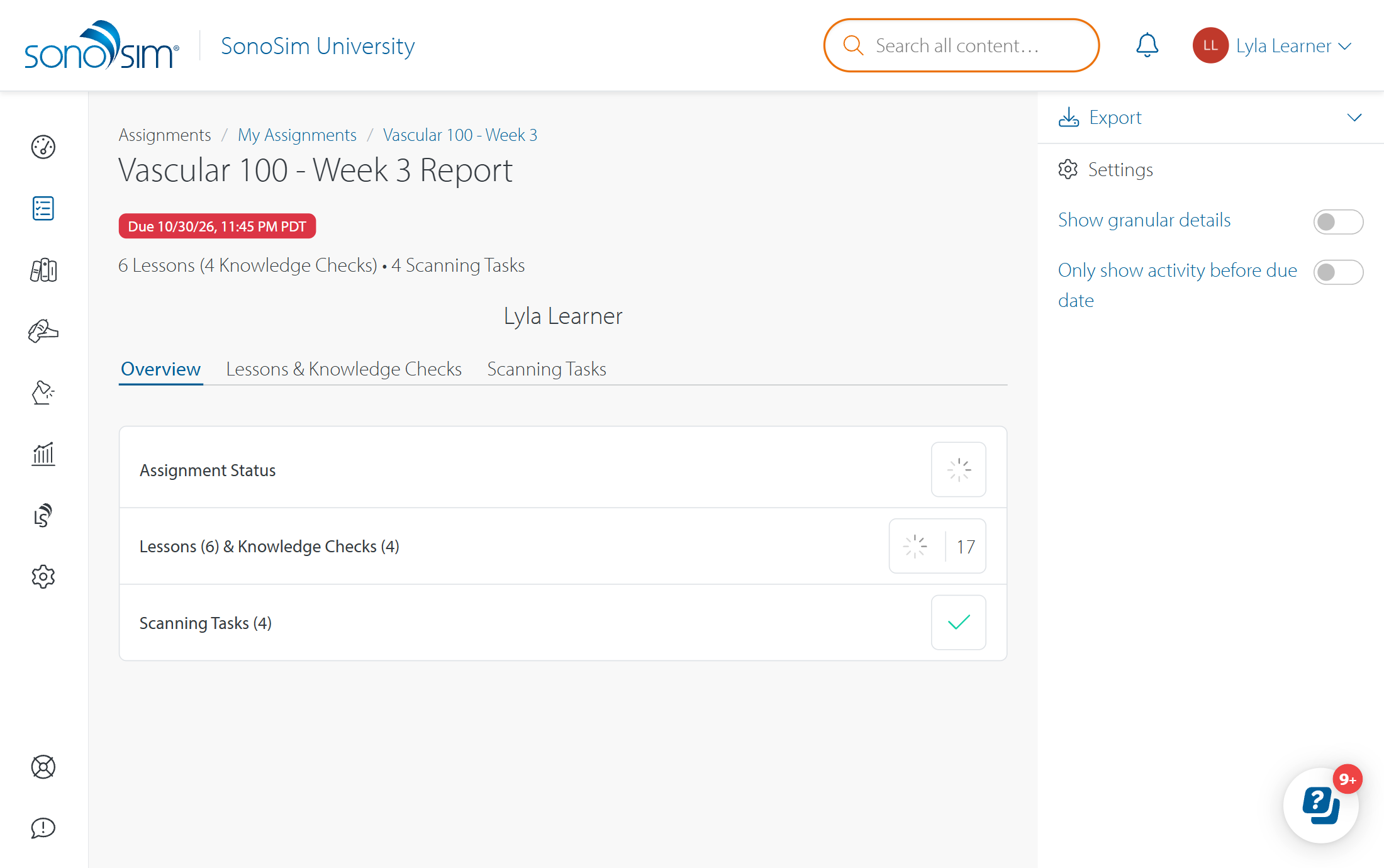
Your progress updates as you complete the assigned work; there is no separate button to submit the whole assignment. If the report shows less than 100%, see Why isn't my assignment 100% complete?
View saved images and instructor feedback
If your assignment includes scanning, open Scanning Activities and select a task to review the image you saved in SonoSimulator. Any published instructor grade or feedback appears with that image. A completed task may show no feedback yet; saving the requested image completes the task, while your instructor's review is separate.
Once feedback is published on an image, you cannot delete or replace that image. For the steps to complete scanning work, see How do I complete an assigned scanning task in the SonoSimulator?
Contact Support
-
Give us a call: 855-873-7666
-
Schedule a virtual Support Session