
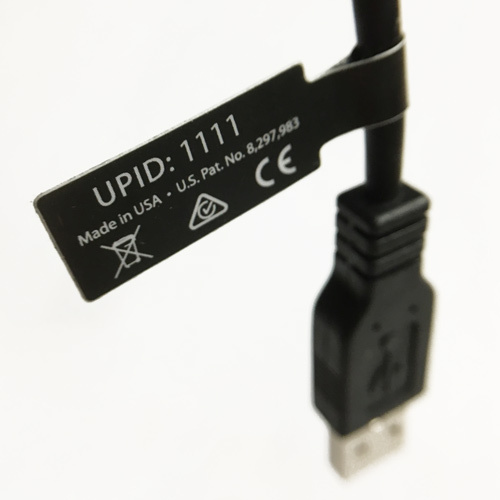
Your probe’s UPID number can be found in two places: (1) printed on a tag attached to your probe and (2) in the SonoSimulator. This article covers both locations.
What is a UPID?
A UPID (Unique Probe Identification) is a 4 to 5-digit number used to identify your probe for troubleshooting with our Support Team.
UPID Locations
Probe Tag
All probes ship with a tag attached to the cord near the USB connector. The UPID number will be printed on this tag.
If your tag is missing, connect your probe to your computer to find the UPID in the SonoSimulator.
SonoSimulator
-
Launch the SonoSimulator application with your probe connected.
-
Sign in.
-
Click the menu icon in the top right corner of the page, then click ‘About’ in the dropdown menu.
-
Find the UPID number listed on the next page.


Having Issues with Finding the UPID?
If you still need assistance, reach out to SonoSim Support using the information below.
Still Have Questions?
Read Related Articles
- How do I access the Case List in the SonoSimulator?
- I successfully installed the SonoSim software, but I need more guidance on what to do in the SonoSimulator?
- How do I calibrate my probe?
- How do I save an image while using compression?
- I'm seeing a “Probe Not Connected” error, but my probe is plugged in. What should I do?
- How do I view my saved images?
- How do I access SonoSim Challenge Cases?
- How do I turn on Test Mode?
- Where do I find the UPID number for my SonoSimulator® Probe?
- How do I delete my saved images?
- Why am I seeing a blue screen instead of an ultrasound scan in the SonoSimulator?
- How do I know if I acquired a satisfactory image?
- Can I edit my annotation on a saved ultrasound image?
- I'm seeing a “Probe Could Not Be Initialized” error. What should I do?
- Why don't all SonoSimulator cases have Doppler? How can I find cases with Doppler?
Contact Support
-
Give us a call: 855-873-7666
-
Schedule a virtual Support Session