
If you're seeing a “Probe Could Not Be Initialized” message, please follow the troubleshooting steps below.
On macOS 26.4.1 or newer? Jump to driver update instructions.
Troubleshooting Steps
-
Try a Different USB Port
Unplug the probe and try connecting it to a different USB port on your computer. -
Restart Your Computer
Sometimes a simple reboot can resolve detection issues. -
Verify System Compatibility
Make sure your computer meets the minimum system requirements. Unsupported systems may prevent the probe from being recognized properly.
Additional Tip for Mac Users
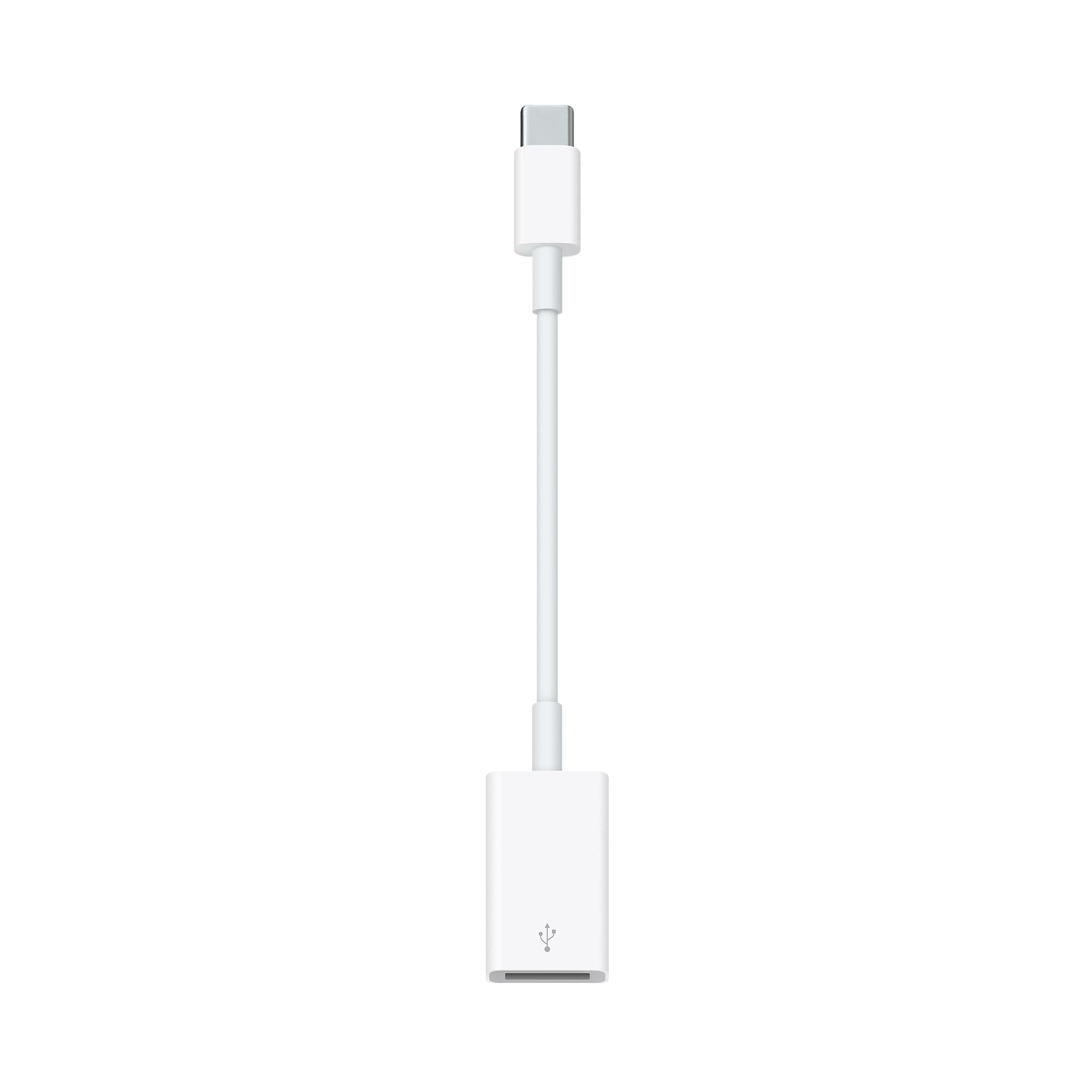
USB-C Adapter
If you're using a Mac that only has USB-C ports (no standard USB-A ports), please ensure you're using an Apple-branded, single-port USB-C adapter.
Using third-party adapters or hubs with multiple ports can interfere with probe detection and is not recommended.
Update Probe Drivers on macOS
If you see a “Probe Could Not Be Initialized” error message and are currently running macOS 26.4.1 or newer, you may need to update your Probe drivers.
Steps to update probe drivers
1. Download: Update SonoSim Drivers on macOS.
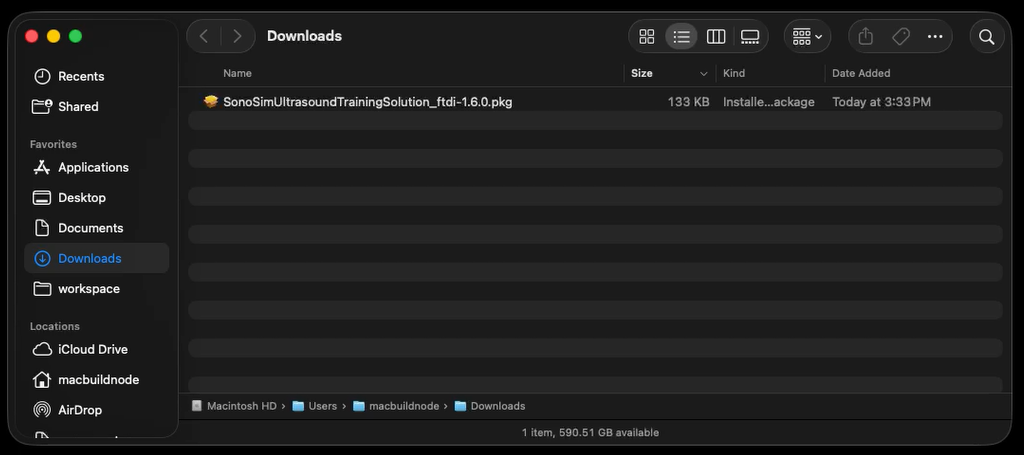
2. Open Finder & navigate to Downloads.
3. Double-click on the file: SonoSimUltrasoundTrainingSolution_ftdi-1.6.0.pkg.
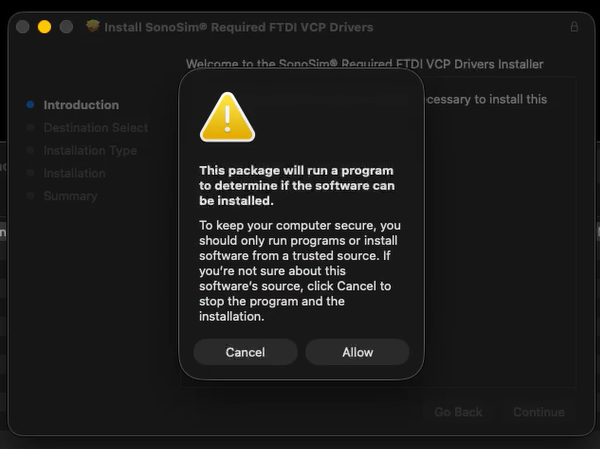
4. Click Allow and follow the installer prompts.
Enter your password when prompted.
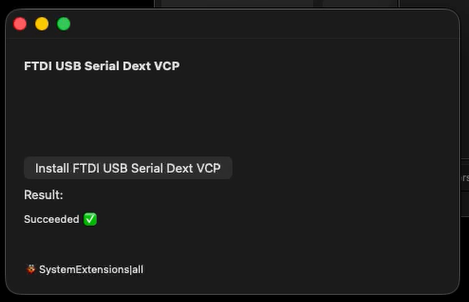
5. When the window for FTDI USB Serial Dext VCP appears, click Install FTDI USB Serial Dext VCP.
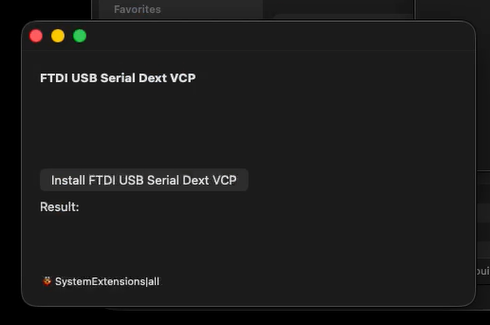
IMPORTANT: Do NOT click “OK”
-
Click Open System Settings.
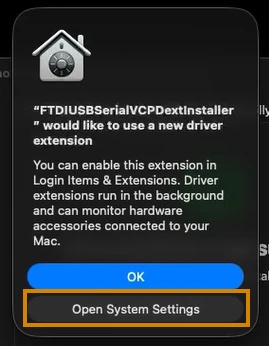
7. Enable the toggle for FTDIUSBSerialVCPDextInstaller.
Enter your password when prompted.
%20copy-20260710-212637.jpg?cb=b80b14e1268756bde54e86768efe6f6c)
Don’t see this window? Launch System Settings and go to:
General > Login Items & Extensions > FTDIUSBSerialVCPDextInstaller
8. Click Done.
9. Close System Settings.
10. The FTDI USB Serial Dext VCP window should have a check mark next to Succeeded.
If so, safe to close the window. You may need to right-click and close the window from the dock.
If not, contact SonoSim support.
11. Click Restart on the Install SonoSim® Required FTDI VCP Drivers window.
Still Seeing the Error Message?
Reach out to SonoSim Support using the contact information below. They can run a diagnostic on your probe to assess if it’s working correctly.
Still Have Questions?
Read Related Articles
- I'm seeing a flashing screen at the SonoSimulator login page and can't sign in on Mac. What should I do?
- What should I do when my course says “Unable to Connect”?
- I'm seeing a “Probe Not Connected” error, but my probe is plugged in. What should I do?
- I'm seeing the error message “SonoSim Services Cannot be Reached.” What should I do?
- I'm seeing the error message “Data initialization could not be completed.” What should I do?
- I'm having issues installing the SonoSim software.
- Why am I seeing a blue screen instead of an ultrasound scan in the SonoSimulator?
- I'm seeing the error message “Feature Temporarily Unavailable.” What should I do?
- I'm seeing a “Probe Could Not Be Initialized” error. What should I do?
Contact Support
-
Give us a call: 855-873-7666
-
Schedule a virtual Support Session