
Open the assigned coursework
-
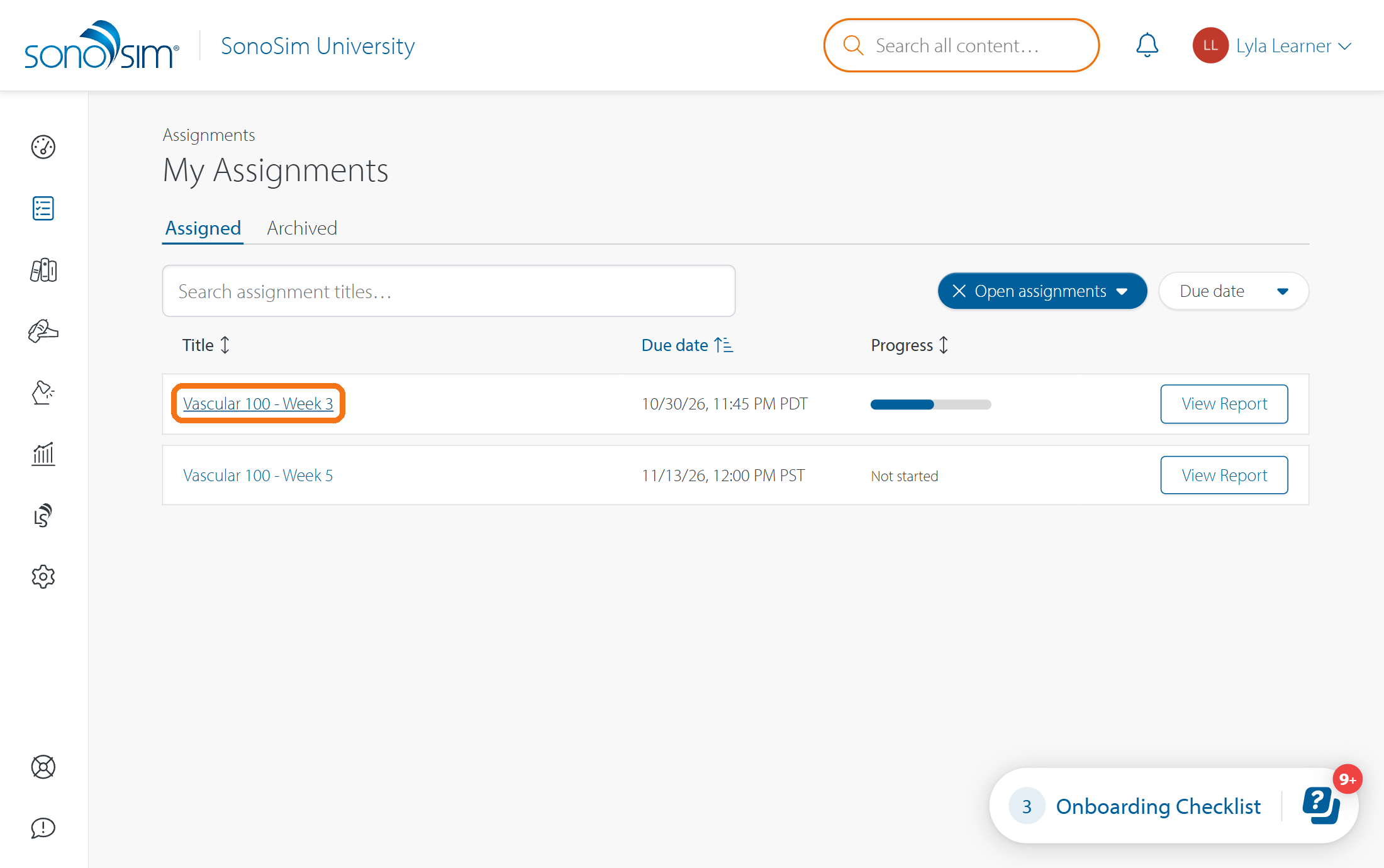
Open Assignments → My Assignments and click the assignment title.
-
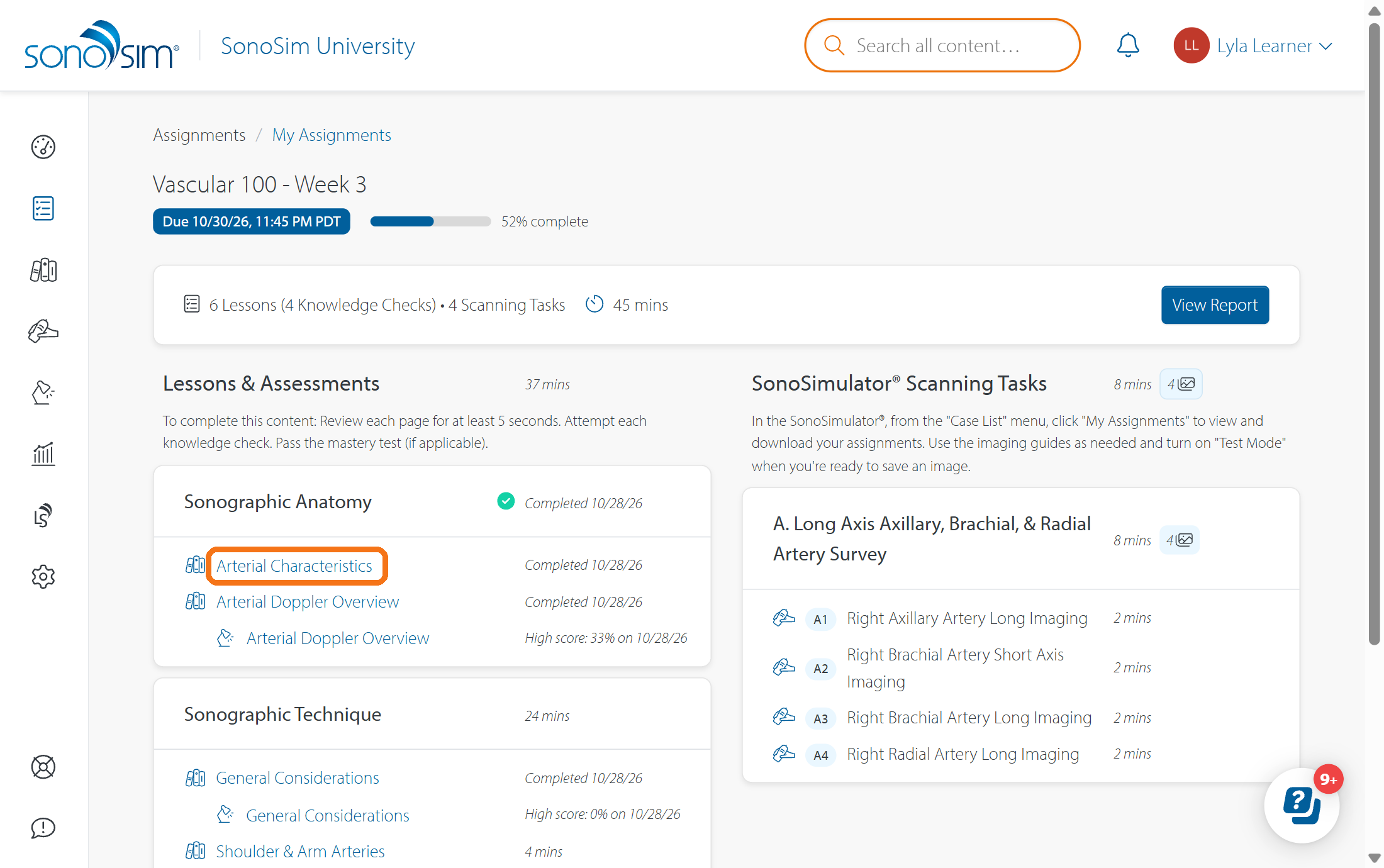
Under Lessons & Assessments, click a lesson, knowledge check, or mastery test to open it in your browser.
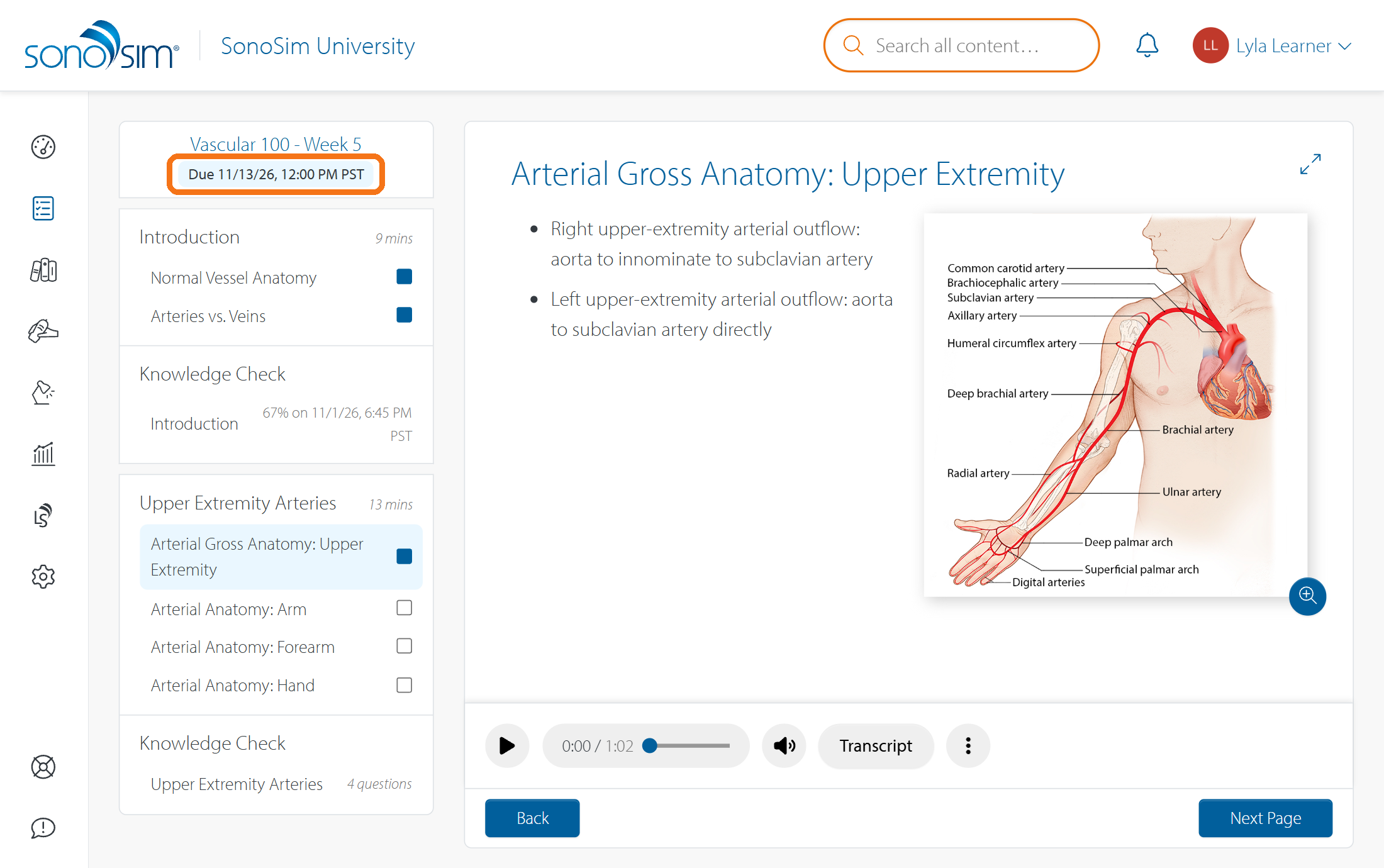
Use the viewer’s Back and Next controls to move through the assigned content. Make sure to complete all content prior to the Due Date.
What counts as complete?
-
Lesson: View each page within the lesson for at least 5 seconds (square will turn fully blue).
-
Knowledge check: Answer all questions. You do not need a passing score.
-
Mastery test: Answer all questions and meet the passing score (i.e., score 75% or higher).
Check your progress
Return to the assignment main page to see what you have completed and what remains. Your progress updates from the work you finish; there is no separate button to submit the whole assignment. If the assignment is not showing 100% complete, see Why isn't my assignment 100% complete?
For general course navigation, see the How to Take a Course orientation.
Contact Support
-
Give us a call: 855-873-7666
-
Schedule a virtual Support Session