
Your assignment reaches 100% when you complete every lesson, assessment, and/or scanning task your instructor assigned.
Open Assignments → My Assignments, select the assignment title, and look for items that are not yet complete (i.e., items that are missing a green checkmark).
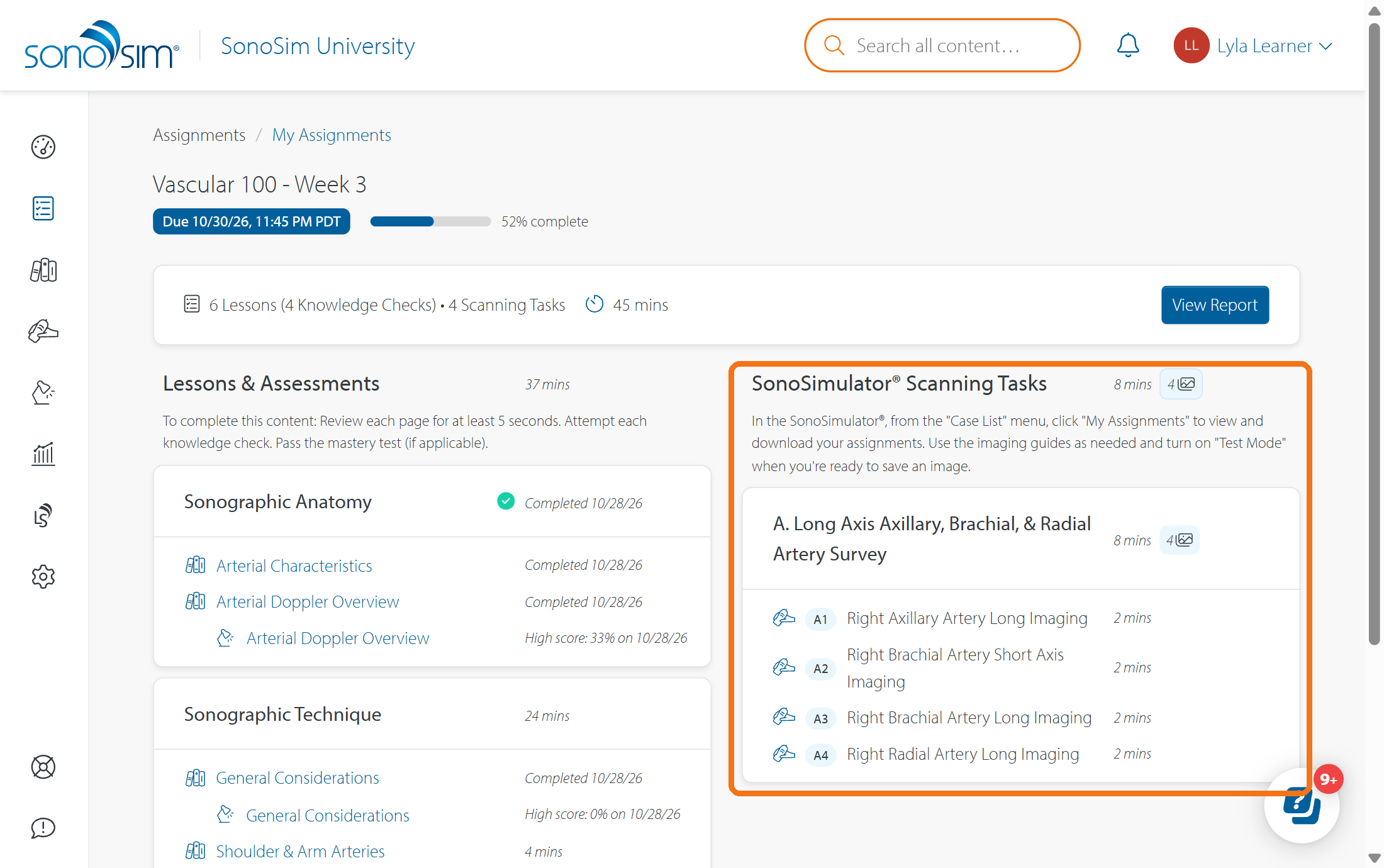
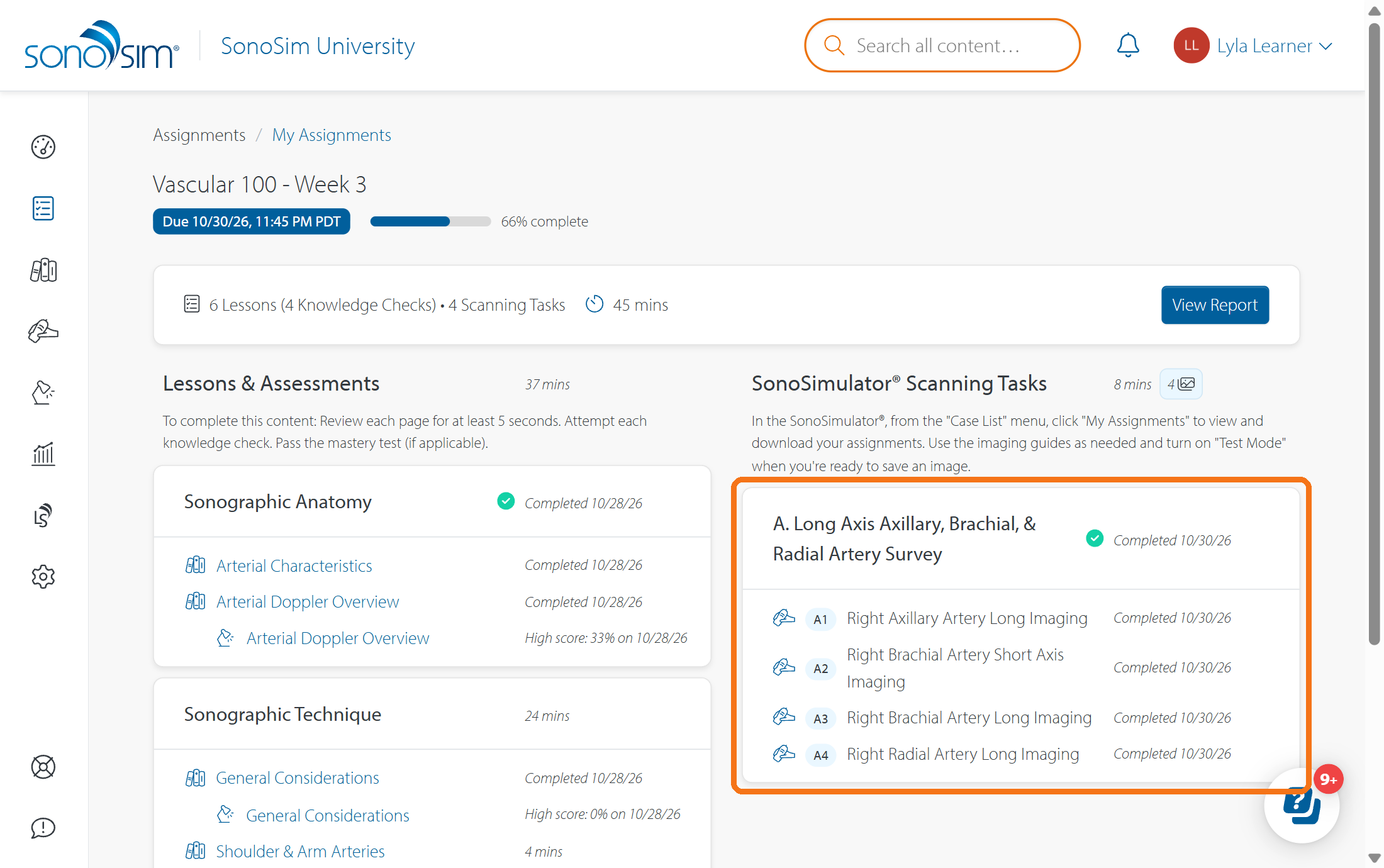
To complete lessons and assessments
-
Lesson pages: View every page for at least 5 seconds. In the lesson viewer, a solid blue square beside a page title means that page is complete. Reopen any page with an empty or partly filled square and stay on it until the square turns solid blue.
-
Knowledge checks: Answer every question to record an attempt. You do not need a passing score.
-
Mastery test: Answer every question and score 75% or higher.
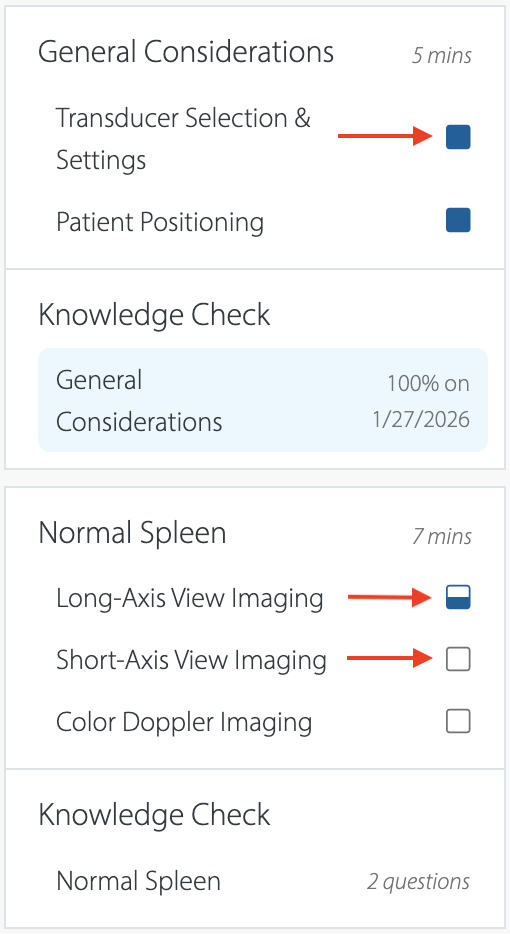
You’ll know all required content within a section has been completed when a green checkmark appears on the assignment main page.
To complete scanning tasks
Each assigned scanning task needs one saved image in the SonoSimulator. A saved image completes the task automatically; an instructor grade or feedback is not necessary for assignment completion. See How do I complete an assigned scanning task in the SonoSimulator? for the full workflow.
If you delete a saved image, that task becomes incomplete. Your assignment may drop below 100% until you save a replacement. You can replace an image only while the assignment is open for work and no feedback has been published on that image.
If you can no longer add progress
The Due Date is your deadline, but it does not always close the assignment. Your instructor may allow late work by setting a separate Until date and time. Once the Until date has passed, the assignment is closed and will say “Access Ended.” At this point, you cannot complete more work.
If you delete a required image after an assignment is closed, you will not be able to save a replacement. Contact your instructor if you need more time.
Contact Support
-
Give us a call: 855-873-7666
-
Schedule a virtual Support Session